Money & accounts
Accounting and expenses
Record expenses, manage cash and bank accounts, and read journal vouchers, the ledger, chart of accounts, trial balance, income statement and balance sheet in plain words
For:AccountantOwnerManager
On this page
Most of the bookkeeping in PharmaDesk happens on its own. You record sales, purchases, payments and expenses properly; the software builds the books, ledgers and profit-and-loss from them. This chapter shows how to record expenses, see where your money is, and what the accounting reports tell you.
Double entry in plain words
In every transaction money comes from somewhere and goes somewhere. In accounting language one side is the Debit, the other the Credit, and the two are always equal. This is double-entry bookkeeping. PharmaDesk writes these entries for you as you work:
| What you do | What the software records |
|---|---|
| Sell medicine for cash | Cash goes up, sales income is recorded, VAT payable goes up if there is VAT; stock goes down and cost of goods sold is recorded |
| Sell on credit | Instead of cash, customer dues (accounts receivable) go up |
| Collect a due | Cash goes up, customer dues go down |
| Buy stock from a supplier | Stock goes up, what you owe the supplier goes up |
| Pay a supplier | What you owe goes down, cash/bank goes down |
| Pay an expense (rent, bills) | Expense goes up, the account you paid from goes down |
| Pay salary | Salary expense goes up, cash goes down |
| Write off expired / damaged stock | Stock loss (an expense) goes up, stock goes down |
So the accountant's daily work comes down to three things: record expenses, check cash and bank balances, and read the reports at month end.
Recording expenses
Rent, electricity, transport, tea and snacks: record every running cost here. If you don't, profit will look higher than it really is.
- Open Finance › Expenses.
- Click Add expense.
- Choose the Category and enter the Amount (৳).
- Under Paid from, choose the account the money left (for example the shop cash or the bank).
- Set the Date and, if useful, a Note (for example "October shop rent").
- Click Save.
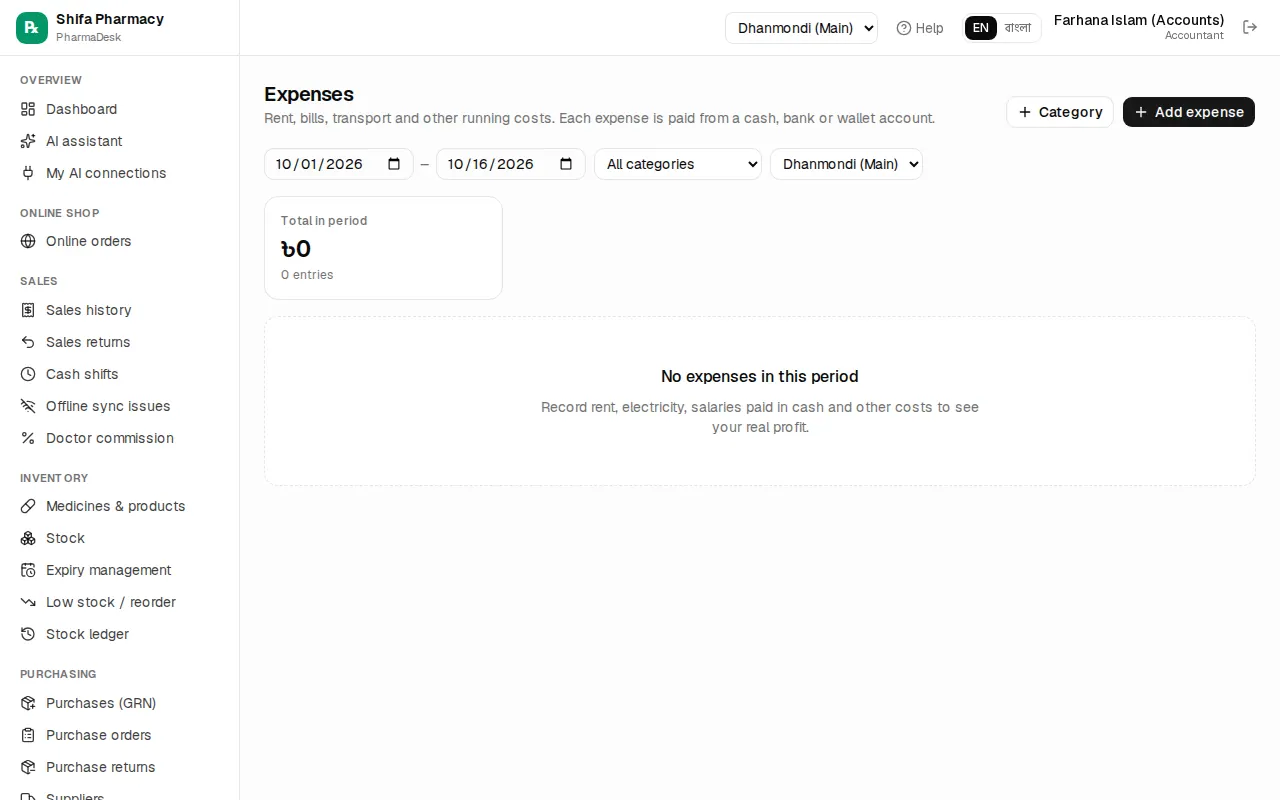
The top shows Total in period and the three biggest categories. Filter the list by date, All categories and branch.
- New category: click the Category button at the top, type a name under New category and click Add category. You can delete old categories in the same window.
- Fix a mistake: click the pencil icon at the right of the row, correct it and save.
- Delete: click the bin icon. Deleting puts the money back into that account.
Cash and bank accounts
Finance › Cash & bank lists every place your money sits: cash drawers, bank accounts and mobile wallets like bKash or Nagad. The top shows Total cash, Total in bank, Mobile wallets and All money. Balances change instantly with every sale, expense and payment.
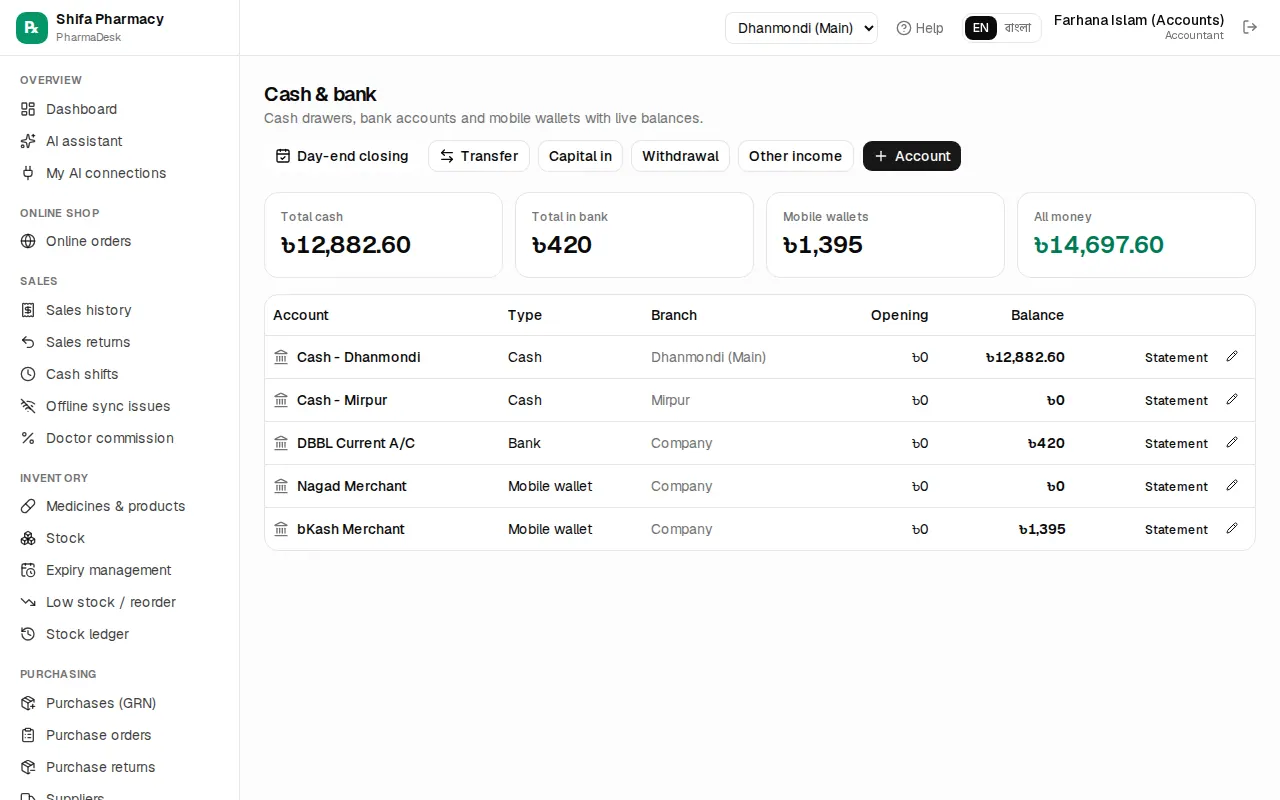
Opening a new account
- Click the Account button.
- Enter a Name (for example "City Bank A/C 1234").
- Choose the Type: Cash, Bank or Mobile wallet. Choose a Branch, or leave it as Company-level.
- In Opening balance (৳), enter how much was in the account on the day you started using the software.
- Click Save.
If an account is closed later, click the pencil and untick Active. Its history is kept.
Moving money, capital and withdrawals
- Transfer: move money from one account to another, for example depositing the day's cash in the bank. Fill in From account, To account, the amount and date.
- Capital in: the owner puts their own money into the business.
- Withdrawal: the owner takes money out for personal use. This is not an expense, so don't record it on the Expenses page.
- Other income: income other than sales, for example an incentive from a company.
Account statement
Click an account name or Statement to see a list like a bank statement: Opening, Money in, Money out, Closing, and the balance after every transaction. Change the dates to see any period, then CSV or Print. This is the best tool for matching against your real bank statement.
Journal vouchers
Accounting › Journal vouchers shows every accounting entry. Automatic entries have a grey tag with their source (for example Sale, Purchase, Expense); manual vouchers have a Manual tag. Filter by date, the All entries list and the Voucher no. or memo search box. Click a voucher number for details, and use Open source document to see the original sale or purchase.
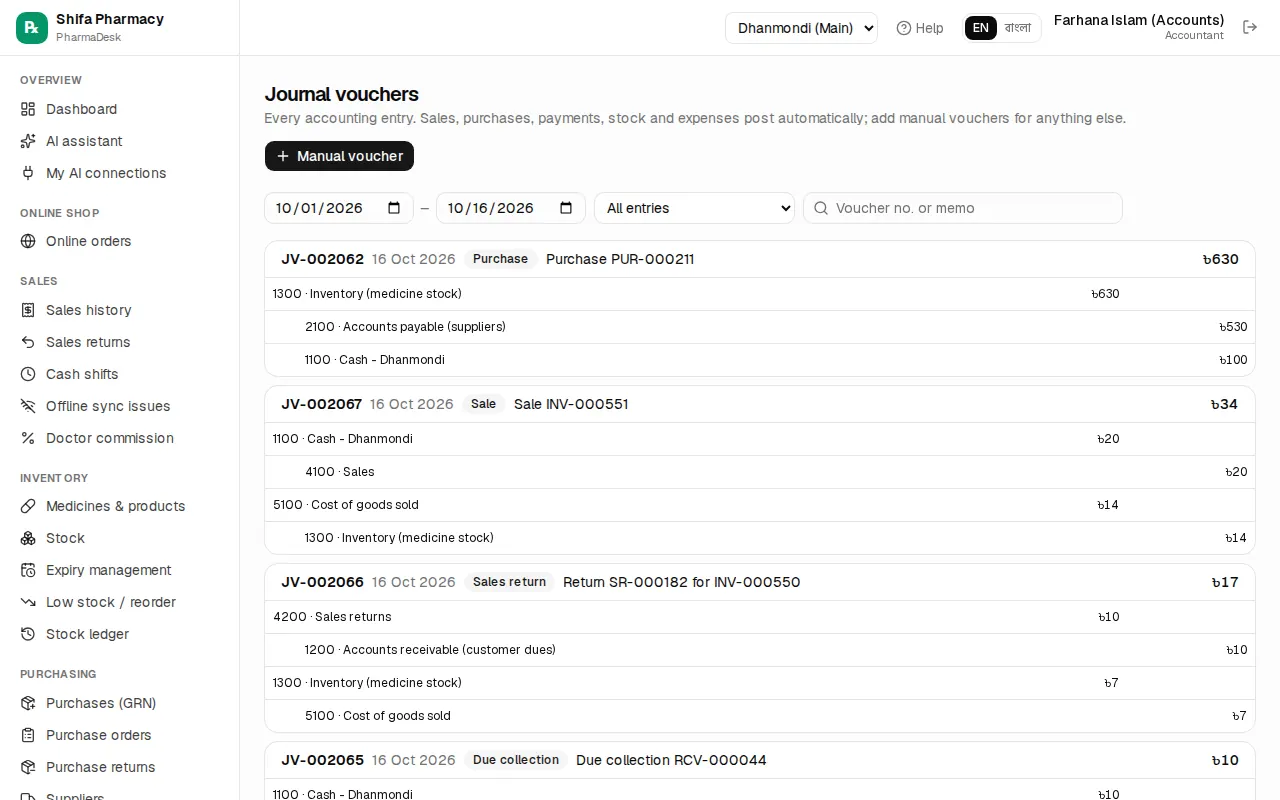
For something no other page records (for example depreciation of furniture), post a manual voucher:
- Click Manual voucher.
- Set the date and type a memo (it won't post without one).
- On each line, choose a ledger from Choose ledger… and enter either Debit ৳ or Credit ৳. Click Line for more lines.
- Adjust until the bottom says Balanced. If debits and credits differ, it shows the Difference and the button stays disabled.
- Click Post voucher.
A manual voucher cannot be deleted. Open it and click Reverse: a reversing voucher dated today is posted and cancels the original. To fix an automatic entry, correct the source document itself (the sale, expense and so on).
Ledger, chart of accounts and financial statements
- Accounting › General ledger: choose a ledger and dates to see every transaction and the running balance.
- Accounting › Chart of accounts: all ledgers in five groups, Assets, Liabilities, Equity, Income and Expenses, with today's balance. A lock icon means the ledger is Used by automatic posting; its type cannot be changed and it cannot be hidden. To add a ledger, click the Ledger button and enter Code, Name and Type. Ledgers you created and no longer need can be put away with Hide.
- Accounting › Trial balance: debit and credit of every ledger up to a date. Enter the date under As of and click Show. "✓ balanced" at the bottom means the books agree.
- Accounting › Income statement: net revenue, Gross profit, expenses and Net profit for a date range, compared with the previous period of the same length. Sales are shown without VAT; returns and discounts are deducted from revenue.
- Accounting › Balance sheet: what the pharmacy owns, owes and the owner's stake on a date. A green message confirms assets = liabilities + equity.
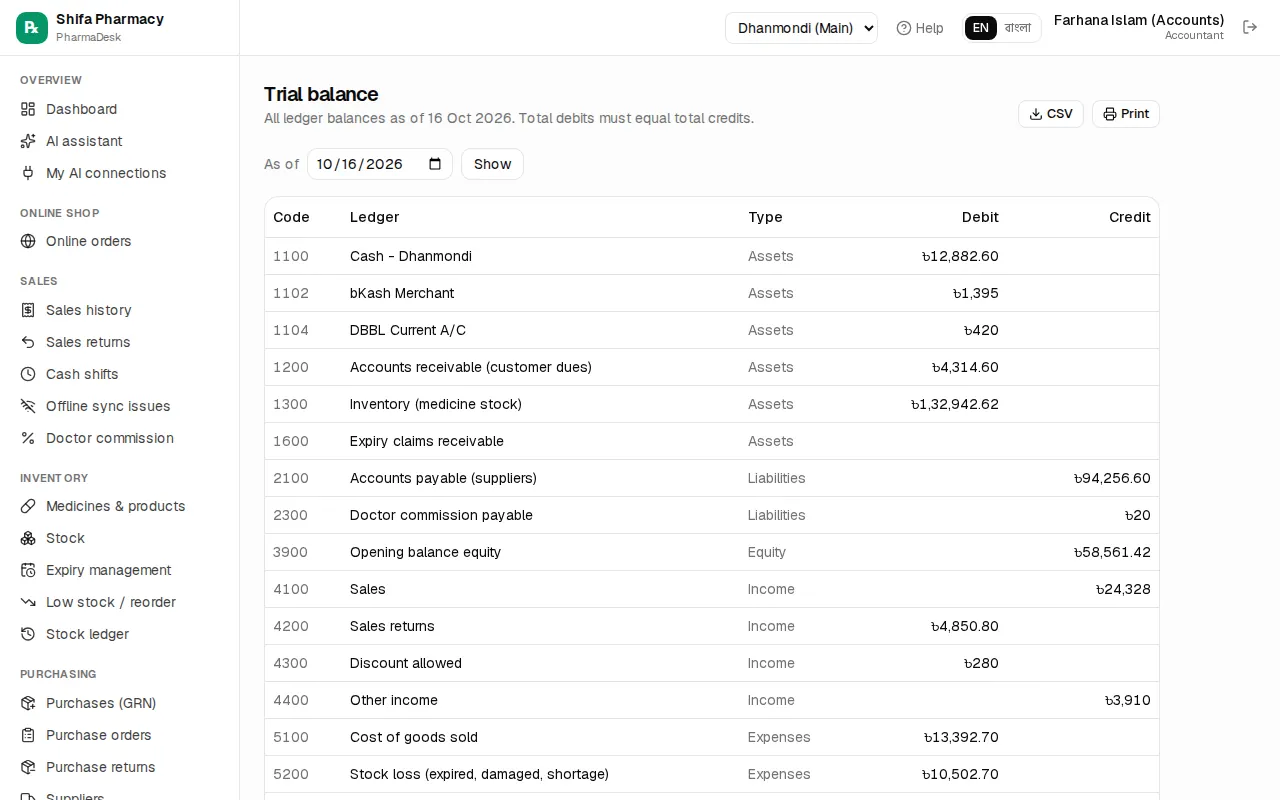
Every one of these pages has CSV and Print. Give these to your accountant or auditor at month end.