Help
Troubleshooting
Answers to common problems with printers, barcode scanners, licence or plan pages, forgotten passwords, access denied, offline sales and stock mismatches
For:OwnerManagerPharmacistCashierStore keeperAccountant
On this page
If you get stuck, check this page first. Under each question you'll find what to do, step by step. If that doesn't solve it, see Contacting support at the end.
Printers and receipts
The receipt does not print
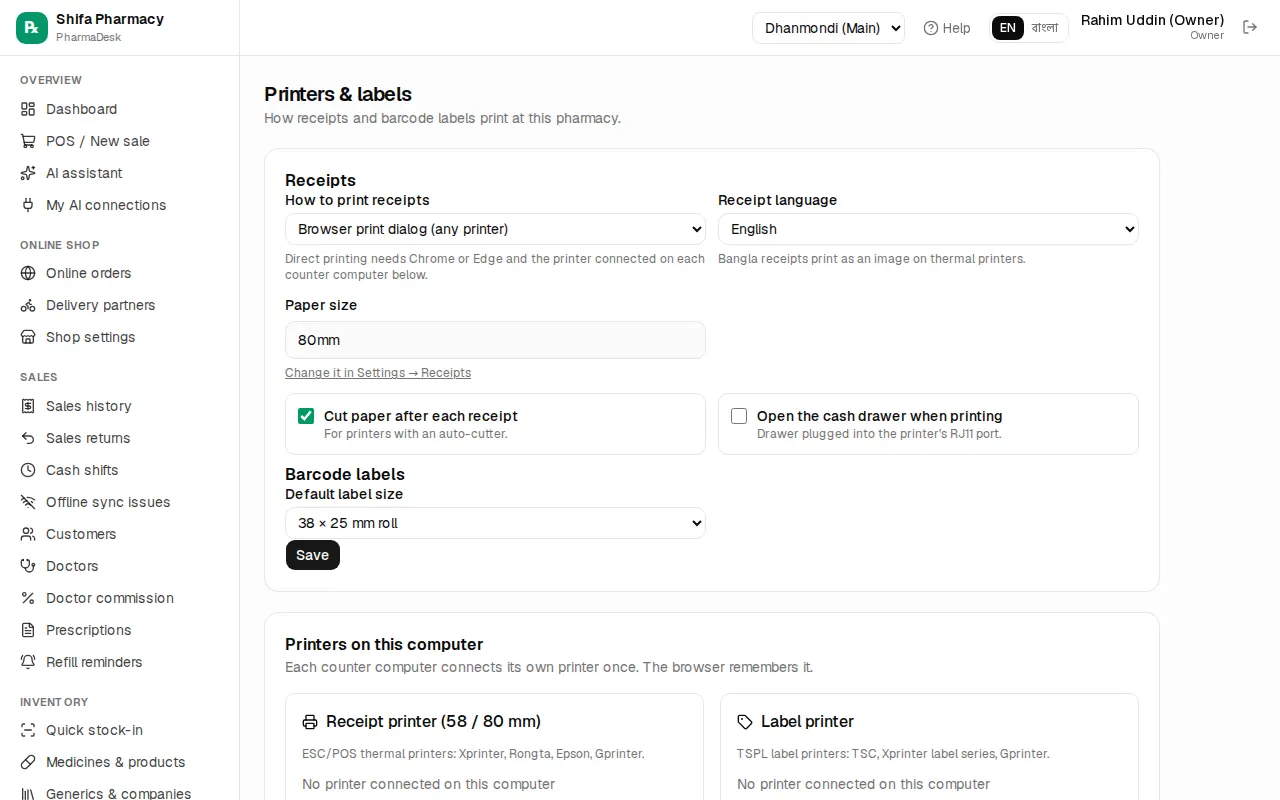
First check how receipts print at your pharmacy. The owner opens Admin › Printers & labels and looks at How to print receipts.
- Browser print dialog (any printer): after a sale, a small window with the receipt opens and the print dialog appears. If nothing opens, the browser blocked the pop-up; a message "Allow pop-ups to print the receipt" appears. Allow pop-ups for this site using the icon at the right of the address bar. In the dialog, make sure the right printer is selected.
- Direct to thermal printer (no dialog): this works only in Chrome or Edge on a computer, and each counter computer must connect its printer once. If the Printers on this computer section further down says "No printer connected on this computer":
- Switch the printer on and plug in the USB cable.
- Click Connect USB printer (or Connect serial / Bluetooth if the printer shows up as a COM port).
- Pick the printer from the browser's list.
- Click Test print. If paper comes out, you're done.
If direct printing isn't set up or the printer can't be reached, PharmaDesk opens the browser receipt page instead, so the sale is never blocked.
The receipt prints at the wrong size or is cut off
The paper size is set in Admin › Settings, in the Receipts section, under Paper size: 80 mm thermal, 58 mm thermal or A4 invoice. Choose the width of your printer roll and save. In browser-dialog mode, also check the dialog's "Paper size" and "Margins" (None), and keep scale at 100%.
Bangla receipts print blank or garbled
When Receipt language is Bangla, thermal printers print the receipt as an image, so it prints a little slower. If letters break, try Test print and check that the paper size is right. If needed, switch Receipt language to English.
The cash drawer does not open
The drawer must be plugged into the printer's RJ11 port, and Open the cash drawer when printing must be ticked. This only works in Direct to thermal printer mode.
Barcode scanner
Scanning does nothing
A scanner behaves like a keyboard: it types the code and presses Enter. So the cursor must be in the POS search box. Press F2 to put the cursor there, then scan again. To test the scanner, open Notepad and scan; if no numbers appear, check the scanner's cable or battery.
Scanning shows "No medicine found"
That medicine has no barcode saved. Open it from Inventory › Medicines & products, click Edit, click into the Barcode box and scan the pack, then click Save changes. For packs without a barcode, you can print your own barcode labels from the Labels page (see Stock control & expiry).
Licence, plan and subscription
A "licence has expired" / "licence is suspended" page appears
This page appears when the pharmacy's licence is not active: expired, suspended or revoked. The page shows the Licence status.
- All your medicines, sales, stock and accounts are saved; nothing is deleted. Everything opens again as soon as the licence is active. The online shop is paused until then.
- If you are the owner, renew using the phone, WhatsApp or email shown on the page.
- If you are staff, tell the owner.
If it says "Your licence has expired: renew soon", it is only a warning; PharmaDesk keeps working until the date shown. Click Go to dashboard to carry on, but renew in time.
A "not part of your plan" page appears
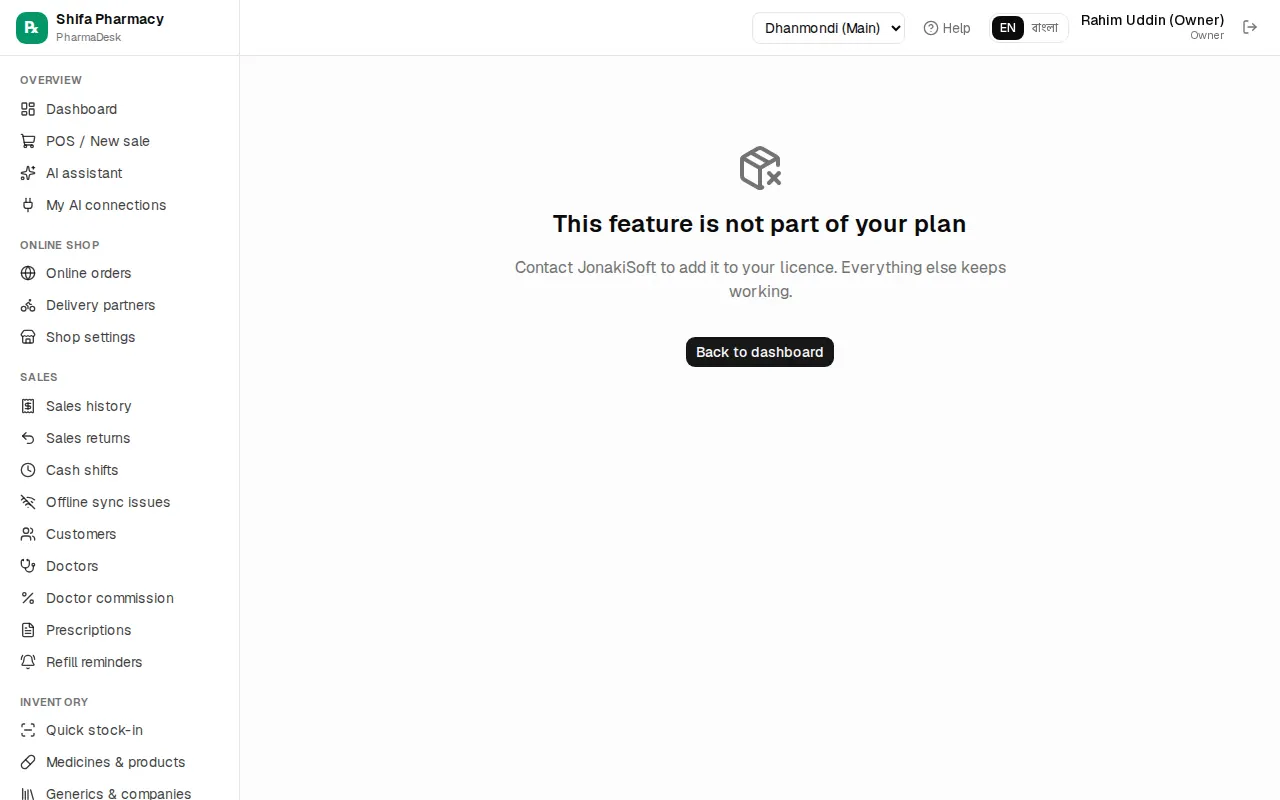
If a menu opens a page like "HR & payroll is not part of your plan", that part (for example HR, online shop, accounting or VAT return) is not switched on in your licence. It is not an error, and everything else keeps working.
- If you are staff, ask the pharmacy owner.
- If you are the owner, contact JonakiSoft using the details on the page to add it to your licence.
- Click Back to dashboard to return to work.
The free trial or subscription has ended
If you see "Your free trial has ended" or "Your subscription has ended", the software won't open until it is renewed, but all data is kept. Sales made offline on this device are kept too and sync automatically after renewal. The owner renews using the contacts on the page; plan and payment details are in Payments, licence & AI.
Login and access
I forgot my password
There is no "forgot password" button on the login page. Here is what to do:
- Staff (manager, cashier and so on): ask the owner. The owner opens Admin › Users & roles, clicks the key icon on your row, types a New password (at least 6 characters) and clicks Set password. You are then signed out on every device; sign in again with the new password.
- The owner: contact JonakiSoft support; after checking who you are, they set a new owner password.
A "No access" page appears
"Your role doesn't allow this page" means your role (for example cashier) is not meant for this page. For example, cashiers cannot open reports or accounting pages. Click Go to POS to get back to work. If you really need the page for your job, ask the owner; they can change your role in Admin › Users & roles. More about users and roles is in Owner setup.
Offline sales
I sold without internet and it hasn't synced
The POS keeps selling without internet; the sale is stored on that device and sent to the server automatically when the internet is back. A yellow or red bar at the top of the POS shows how many sales are waiting to sync.
- Check that the internet is working.
- Click Sync now on the bar at the top of the POS.
- If sales are still waiting, click Details. The Offline sales on this device list shows each sale, how many times it was tried and any error in red.
- If you were signed out, sign in again; syncing then continues.
A sale appears under "Offline sync issues"
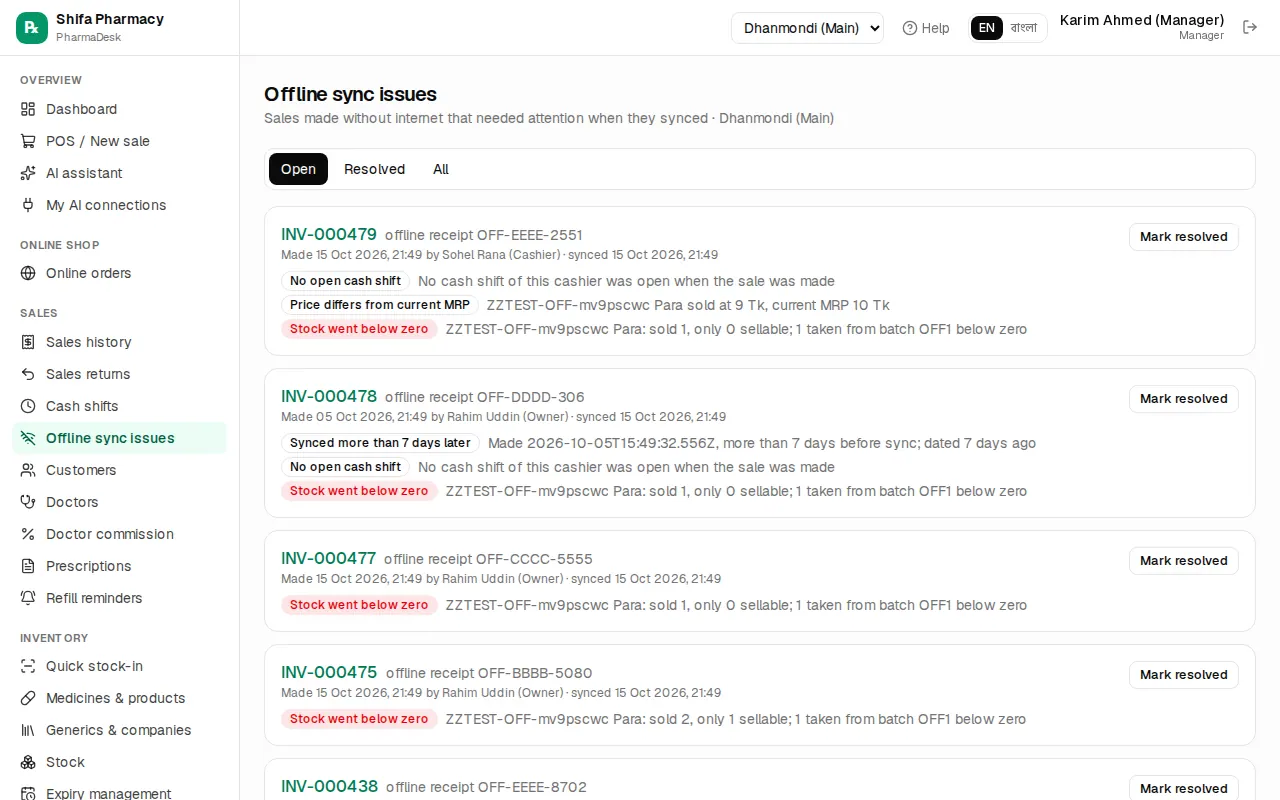
When an offline sale syncs with more than the stock, an old price, an expired batch or a discount over the limit, the sale is still recorded but listed under Sales › Offline sync issues. A manager or the owner checks each one (for example, counting stock when it went short) and then clicks Mark resolved. Issue names such as "Stock went below zero" or "Device clock was wrong" explain what happened.
Stock looks wrong
- Open Inventory › Stock ledger and look at every movement of that medicine: purchases, sales, returns, transfers, adjustments.
- Common causes: mixing up boxes/strips and pieces when entering a purchase, sales or transfers at another branch, offline sales not yet synced.
- If a purchase was wrong, fix the purchase. To set the real shelf count, use Inventory › Stock count or Inventory › Adjustments. Details in Stock control & expiry.
Contacting support
If this page didn't solve it:
- First tell the pharmacy owner or manager; many things (passwords, roles, printer settings) they can fix themselves.
- The owner contacts JonakiSoft support. Phone, WhatsApp and email are shown on the "not part of your plan", licence and subscription pages. If a reseller set up your software, their contacts appear there instead.
- When you get in touch, give: the pharmacy name, which page you were on and what you were doing, what the screen said (a screenshot is best), and the invoice number if there is one.