Daily selling
Cash shifts and closing
Open a shift with the drawer cash, close it with a count, deal with short or over cash, and check the day-end closing.
For:CashierManagerOwnerAccountant
On this page
A cash shift is how you account for the money in your cash drawer. You open it with the cash already in the drawer and close it by counting the drawer. PharmaDesk works out what should be there, so a short or over amount shows up at once.
How shifts work
- Every person who sells has their own shift, separate in each branch. Two cashiers at two counters each run their own.
- The POS won't sell until you open a shift.
- Only the person who opened a shift can close it. A manager can't close someone else's shift.
- One person can have only one open shift at a time.
Open a shift
- Go to Overview › POS / New sale.
- The Open cash shift card appears. Count the notes and coins in the drawer.
- Type the amount in Opening cash (৳). If the drawer is empty, type
0. - Click Open shift. The sale screen opens.
While you sell, a line at the top of the right side of the POS shows Shift since 09:00 · 25 sales · ৳12,400.
Close a shift
Close your shift at the end of your duty, or when you hand over the counter.
- On the POS, click Close shift, next to the shift line on the right.
- The window shows Sales (N) split by payment method, On credit (due), then Opening cash, + Cash sales, + Due collected (cash), − Cash refunds and, at the bottom, Expected in drawer. That's the amount that should be in the drawer.
- Count the drawer cash and type it in Cash counted (৳). As you type, it tells you Matches, Over by or Short by.
- If anything is off, write the reason in Note (optional).
- Click Close shift.
- The result shows. Click Print Z report to print the shift report, then Done.
Held carts don't block closing. They stay for your next shift.
How the expected cash is worked out
| Item | Effect |
|---|---|
| Opening cash | + |
| Cash taken in sales (after change) | + |
| Dues you collected in cash during the shift | + |
| Cash refunds on returns | − |
| Expected in drawer | = |
bKash, Nagad, Rocket and card payments aren't in the drawer, so they aren't in this sum. Due sales aren't either. Don't count bKash money as drawer cash.
When the cash is short or over
- Short: check whether a bKash sale was entered as cash, or whether change was given wrongly. Look at the payment column in Sales › Sales history for your cashier name and today's date.
- Over: a cash payment may have been typed as bKash, or a refund wasn't given.
- Type the real counted amount. Don't change it to make it match. Write what happened in the note so the manager can follow it up.
Reading the shift list
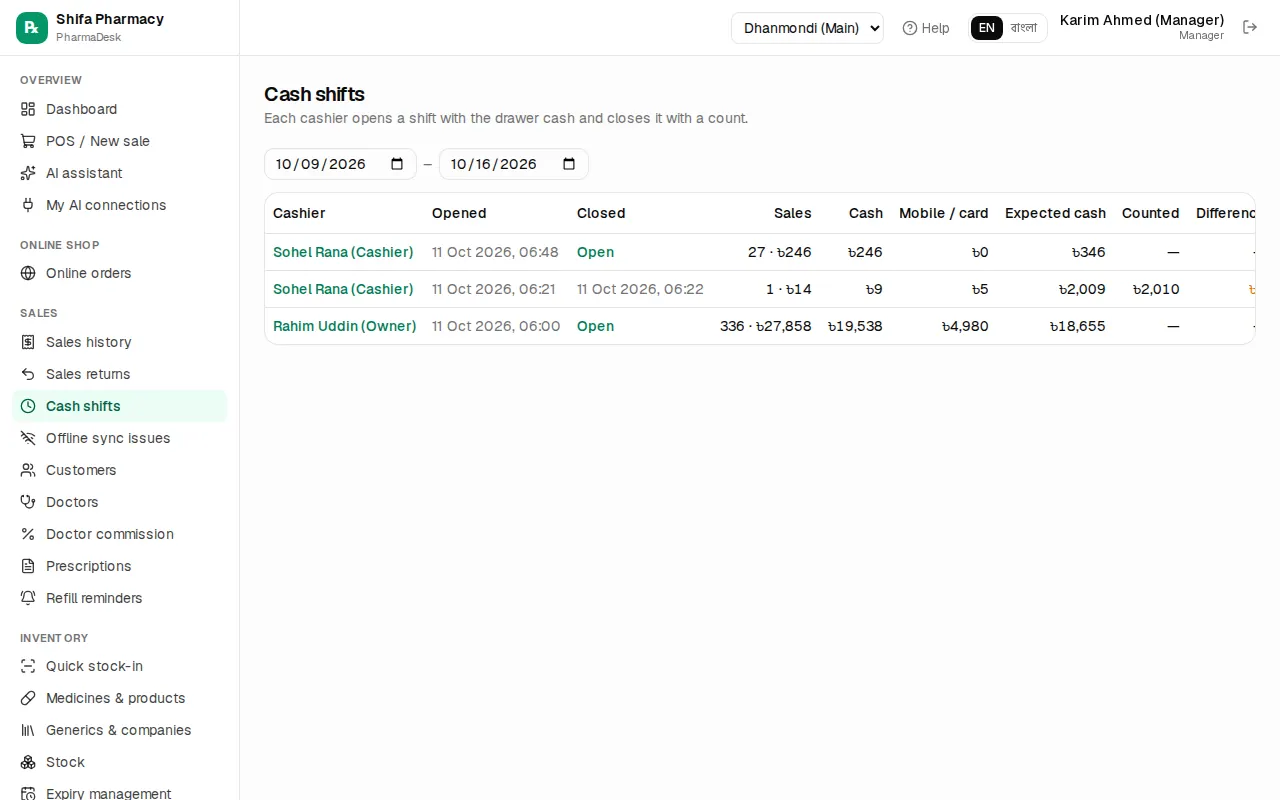
Sales › Cash shifts shows the shifts for the last 7 days. You can change the dates. Cashiers and pharmacists see only their own shifts. Managers, accountants and the owner see everyone's.
The columns are Cashier, Opened, Closed (an open shift says Open), Sales, Cash, Mobile / card, Expected cash, Counted and Difference. In the difference column OK means it matched, red means short and amber means over.
Click the cashier's name to open that shift's report. An open shift shows the X REPORT (shift open) with running totals. A closed one shows the Z REPORT (shift closed). It also shows returns and voided sales, and has signature lines for the cashier and the manager. The Print button prints it on 80mm paper.
What the manager checks
At the end of each day:
- Open Sales › Cash shifts and make sure no shift from today is still Open. If one is, ask that person to log in and close it.
- Look for red or amber in the Difference column and read the note in the Z report.
- Collect the counted cash along with the signed Z report.
- Look at Sales › Offline sync issues for sales that synced late.
Day-end closing
Day-end closing is separate from the shifts. It shows every money account in one place, including cash, bKash and the bank. Managers, accountants and the owner can open it.
- Go to Finance › Cash & bank and click Day-end closing.
- Pick a date. If you have more than one branch, pick the branch.
- The table shows Opening, In, Out and Closing for each account.
- Where the money came from / went breaks it down into sales received, dues collected, refunds, supplier payments, expenses and so on.
- Underneath is the day's Cash shifts table, with each cashier's expected, counted and difference. A shift still open says Still open.
- Click Print. The printed copy has Prepared by and Checked by lines for signatures.
Check the closing balance of the cash account against the cash you actually have. More about accounts is in Accounting.
Common mistakes
- Going home without closing the shift. The next day the old shift is still open and the totals get mixed.
- Counting bKash or Nagad money in Cash counted (৳).
- Changing the counted amount to make it match. Put the real figure and a note.
- A manager trying to close a cashier's shift. The cashier has to log in and close it.