Daily selling
Daily selling (POS)
Make a sale at the counter, take cash, bKash or due, print the receipt, sell without internet, and take returns.
For:CashierPharmacistManagerOwner
On this page
- Open the POS
- Make a sale step by step
- Quantity: strips and loose units
- Batch and expiry (FEFO)
- Price and discounts
- Customer and selling on due
- Split payment: cash + bKash
- Hold and recall
- Keyboard shortcuts
- Printing the receipt
- Prescriptions and doctors
- Selling without internet
- Sales history
- Returns and refunds
- Selling from a phone
- Common mistakes
The POS screen is where you sell at the counter. This chapter goes through one sale from start to finish, then covers held bills, printing, selling without internet and returns.
Open the POS
Go to Overview › POS / New sale. You can't sell without an open cash shift. If you don't have one, the screen shows Open cash shift: count the drawer cash, type it in Opening cash (৳) and click Open shift. See Cash shifts and closing.
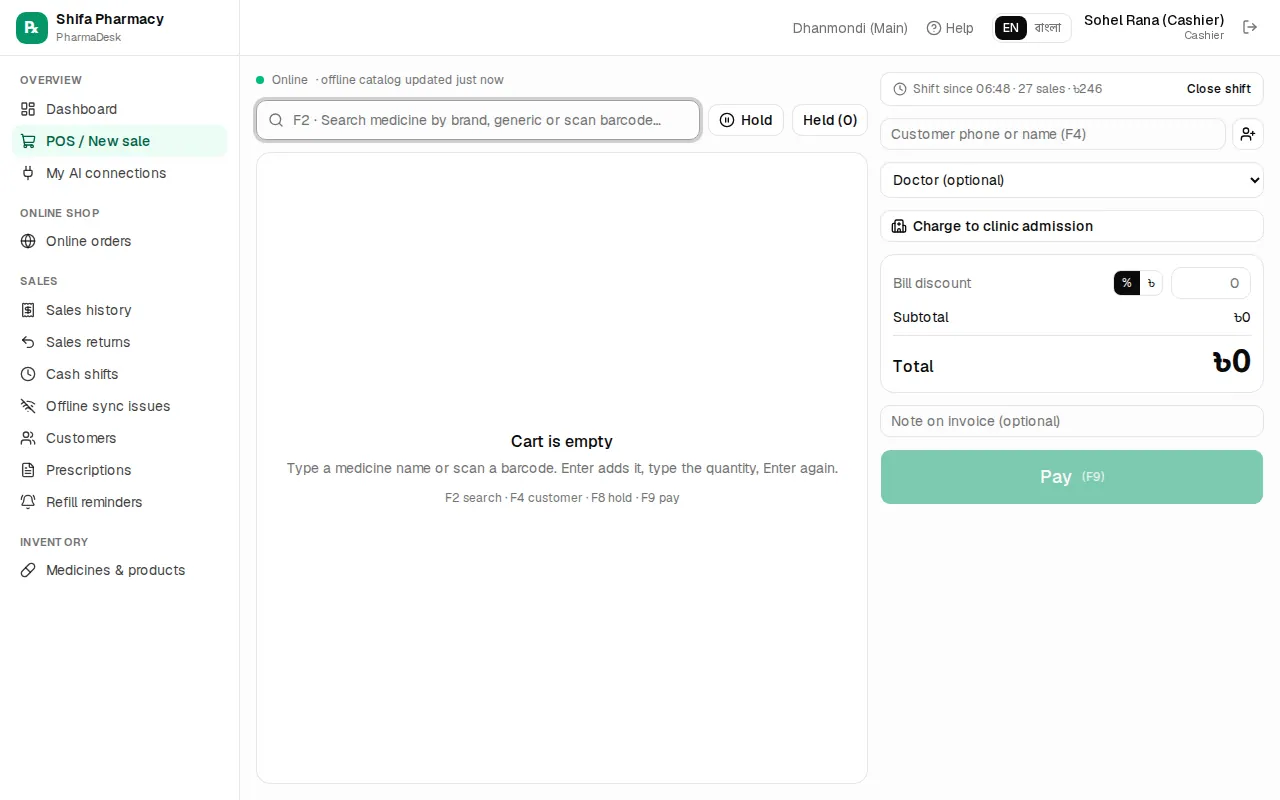
The left side has the search and the cart. The right side has the shift info, the customer, the doctor, the discount, the total and the green Pay button.
Make a sale step by step
- Press
F2or click the search box. Type the brand or generic name, for example napa or paracetamol. - Pick the right strength with the arrow keys and press
Enter. You can also scan the box with a barcode scanner, which adds the medicine straight away. - The cursor moves to the quantity. Type it and press
Enterto go back to the search. - Repeat for each medicine.
- If you need a customer, type their phone or name in Customer phone or name (F4).
- Click Pay or press
F9. - Check Cash received and click Complete sale (Enter).
- Sale complete shows Change to give. Press
Enterto print the receipt orEscto start the next sale.
Quantity: strips and loose units
Strip medicines have two boxes, strip and loose units. For example, with 10 tablets per strip, 1 strip + 4 = 14 tablets. Syrups and similar items have one box. Under each name you'll see the generic, the rack and the stock left. If there isn't enough stock, the line turns red.
Batch and expiry (FEFO)
The Batch column starts at Auto (FEFO), so the batch that expires first sells first. Badges under it show the batch and expiry that will be used. You can pick a batch from the list. Expired batches are blocked unless Allow selling expired batches is on in settings, and it should stay off.
Price and discounts
- Price: only the manager and the owner can edit it. Others see the MRP as fixed.
- Disc ৳: a taka discount on one line.
- Bill discount: on the whole bill, as % or ৳.
- Redeem points (of N): shown when loyalty is on and the customer has points.
If the total discount goes over the Cashier discount cap (%) in settings, a red note says A manager must sell this and Pay stays disabled. Only a manager or the owner can go above the cap.
Customer and selling on due
Type a phone number or name and pick from the list. If the person isn't there, click the person-with-plus button. In New customer, fill in Name, Mobile and Allergies (optional), then click Add customer. The customer box shows their Due, Credit limit and allergies (in yellow).
To leave a due (baki), lower Cash received. The Due box shows what is left and the button changes to Complete with due (Enter).
- A due needs a customer.
- A due can't push the customer over their credit limit. A limit of 0 means no due at all.
- A manager or the owner can tick Manager override: allow this due.
Collecting dues is in Customers and dues.
Split payment: cash + bKash
Under Cash received are boxes for bKash, Nagad, Rocket and Card, each with an amount and a TrxID (for a card, Last 4). Example: the bill is ৳850 and ৳500 comes by bKash.
- In the bKash box, type
500and the TrxID. - Change Cash received to
350. - Check that Paid is ৳850 and Due is 0, then click Complete sale (Enter).
Hold and recall
If the patient steps away, click Hold (F8). The cart is saved and the screen clears. To bring it back, click Held (N) and then Recall. The bin icon deletes a held cart. Held carts are still there after you close the shift.
Keyboard shortcuts
| Key | What it does |
|---|---|
F2 | Medicine search |
F4 | Customer box |
F8 | Hold the cart |
F9 or Ctrl+Enter | Payment window |
Enter (after a sale) | Print the receipt |
Esc (after a sale) | New sale |
Printing the receipt
Print receipt (Enter) opens the receipt in a small window with the print dialog. At the top you can choose 80mm, 58mm or A4. If the owner has set up direct printing to a thermal printer, it prints on its own. If nothing opens, allow pop-ups in the browser. To reprint, open the sale from Sales › Sales history and click Print receipt.
Prescriptions and doctors
When an Rx medicine is in the cart, a blue note asks you to check the prescription and select the doctor. Pick one from Doctor (optional). If that doctor gets commission, it is added automatically.
After you choose a customer, Prescription (optional) lists their saved prescriptions. Upload new saves a new photo. Sales › Prescriptions has the full list, and Add prescription takes a photo or PDF there (on a phone it opens the camera).
CD marks a controlled drug. The payment window then requires the patient name and the prescribing doctor.
Selling without internet
The status at the top of the POS turns yellow and says Offline when the internet drops. You can keep selling from the list saved on the device. Each sale gets a temporary number and the receipt still prints. When the internet is back, the sales sync by themselves, or you can click Sync now. Details shows the sales still waiting.
- Open the POS once while online on this device, and open the shift while online.
- Offline, you can't hold a cart, close the shift, add a customer, take Rocket, or use the due override.
Sales that synced with a problem (stock below zero, an old price, over a limit) appear in Sales › Offline sync issues. A manager checks each one and clicks Mark resolved.
Sales history
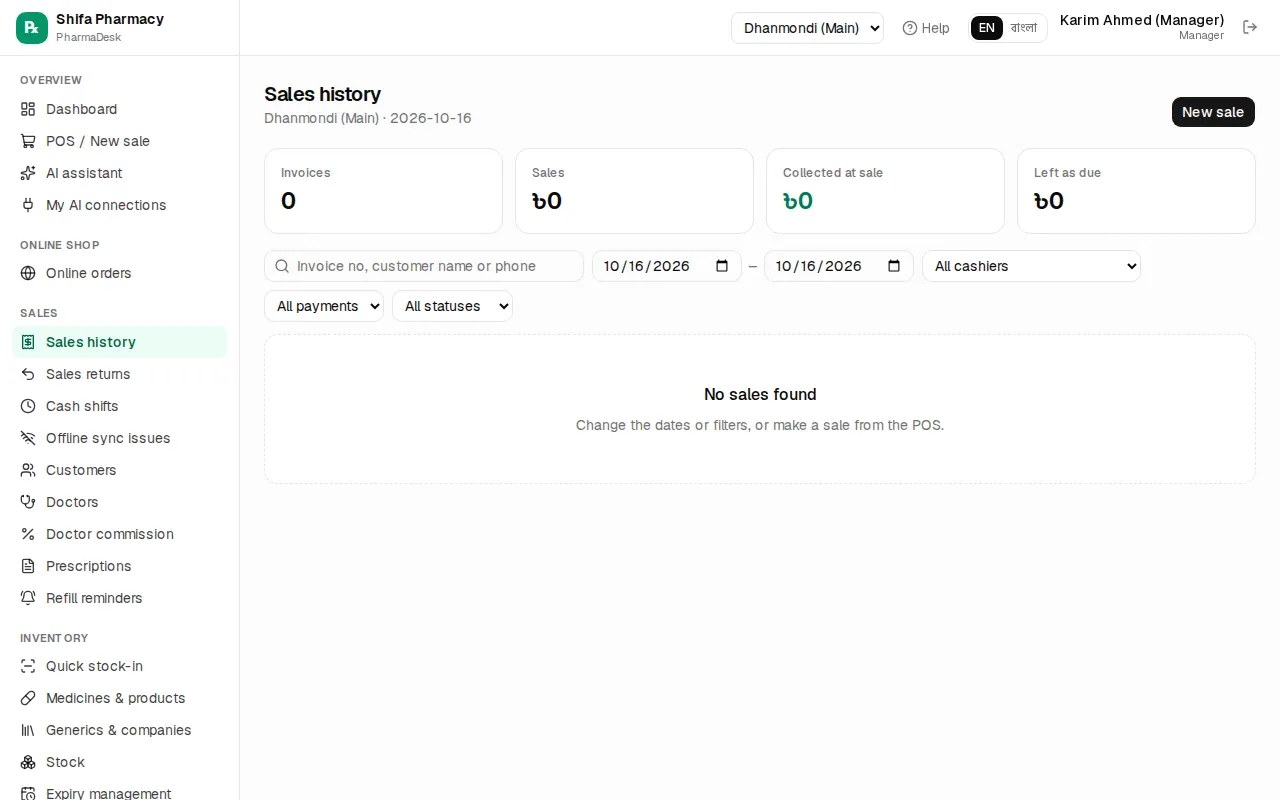
Sales › Sales history shows today's invoices. You can change the dates and filter by invoice number, name, phone, cashier, payment or status. Open an invoice to reprint it or get Mushak 6.3. Only a manager or the owner can cancel a sale with Void, and they must give a reason. The stock and the payment go back.
Returns and refunds
A pharmacist, manager or owner can take returns. Cashiers can't.
- Open the invoice and click Return items.
- Type the Return qty for each item.
- Leave Back to stock ticked if the medicine is fine. Untick it for damaged or expired medicine.
- Under Give back as, choose Reduce the customer's due or Refund money and pick the method.
- Check Total to give back and click Save return.
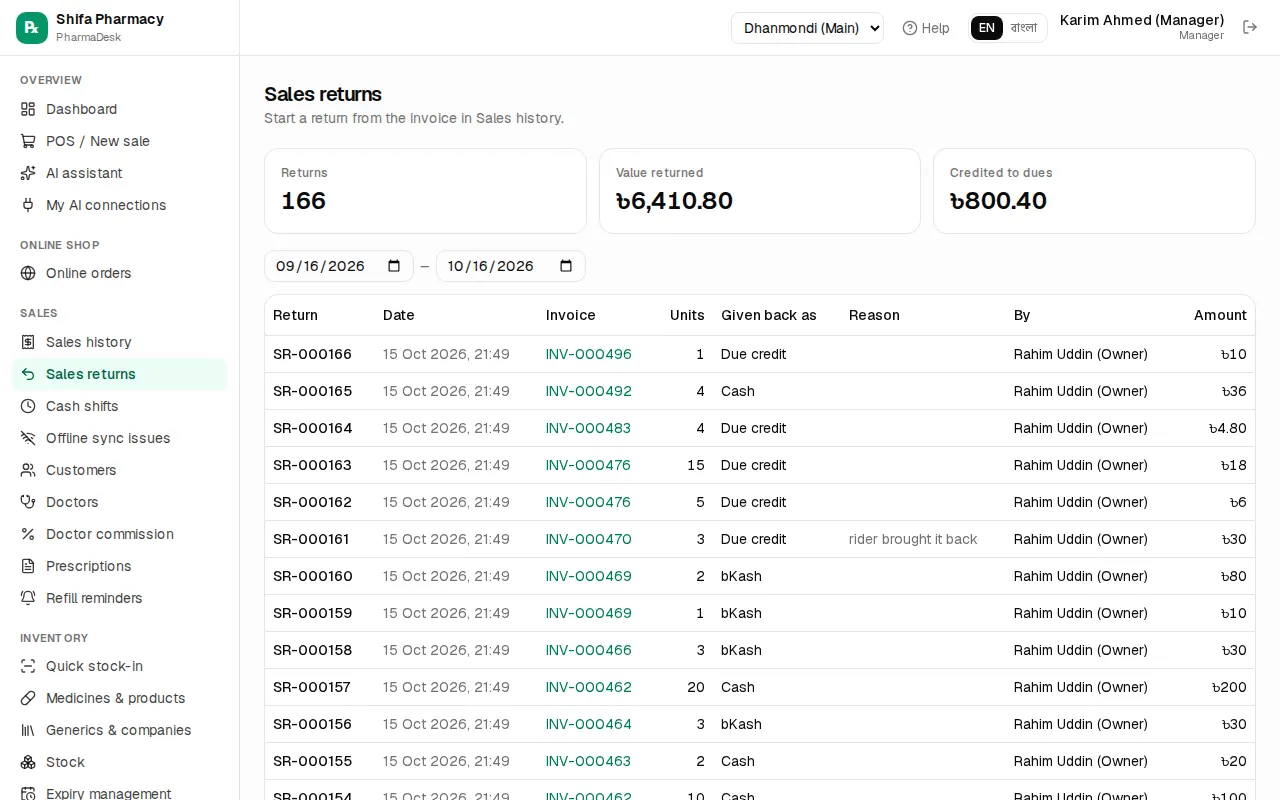
Once the return window set in settings has passed, only a manager can take the return. A cash refund lowers the cash expected in your drawer. All returns are listed in Sales › Sales returns.
Selling from a phone
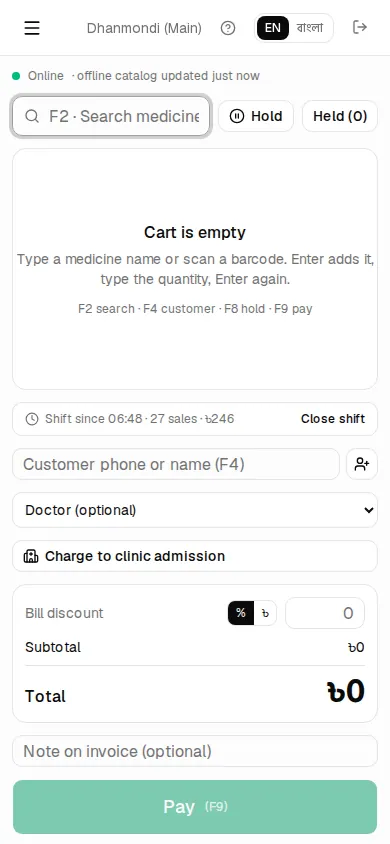
On a phone, the search and the cart are at the top. Scroll down for the customer, total and Pay. There are no F keys, so tap the buttons. A Bluetooth barcode scanner works too.
Common mistakes
- Taking bKash without lowering Cash received.
- Trying to leave a due without a customer.
- Clearing browser data while offline sales are waiting.
- Asking a cashier to take a return.