Stock & purchasing
Stock control & expiry
Viewing stock, handling expired goods and expiry claims, reordering, damage and loss adjustments, branch transfers, stock counts and the stock ledger
For:Store keeperManagerOwnerPharmacist
On this page
A pharmacy's money sits on its shelves. This chapter shows how to keep stock accurate, sell or claim short-dated goods in time, and order before you run out. All pages are under the Inventory menu, and every figure is for the Branch chosen in the top bar.
Stock list
Inventory › Stock shows four figures at the top: products in stock, stock value at cost and at MRP, and the value of expired stock.
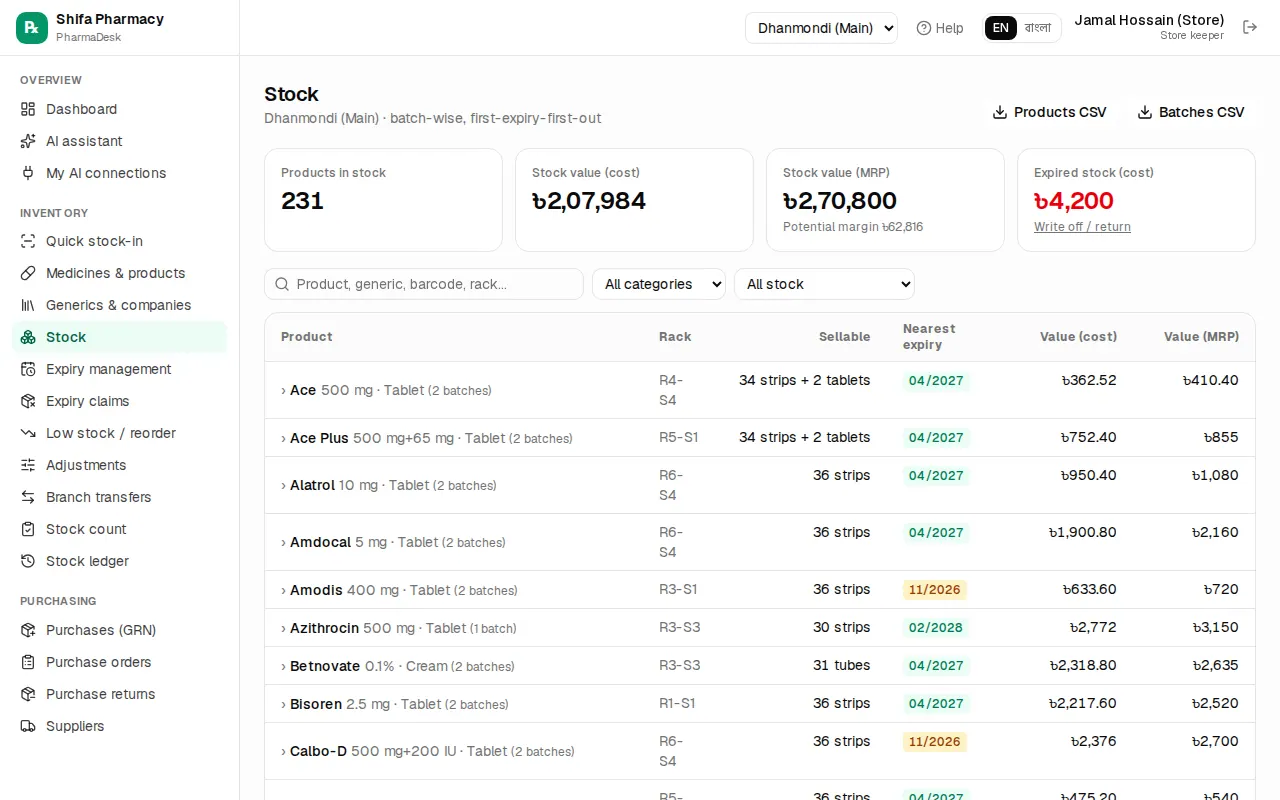
- Search by product, generic, barcode or rack.
- Filters: At/below reorder level, Has expired stock, Negative batches.
- Click a product name to open all its batches with expiry, quantity, cost and MRP.
- Sellable is what you can actually sell, expired stock excluded.
- Use Products CSV or Batches CSV to download for Excel.
Expiry management
Inventory › Expiry management shows how much stock has expired and how much expires within 30, 60 and 90 days. Below is the Expiry calendar · next 12 months; click a month to see its batches.
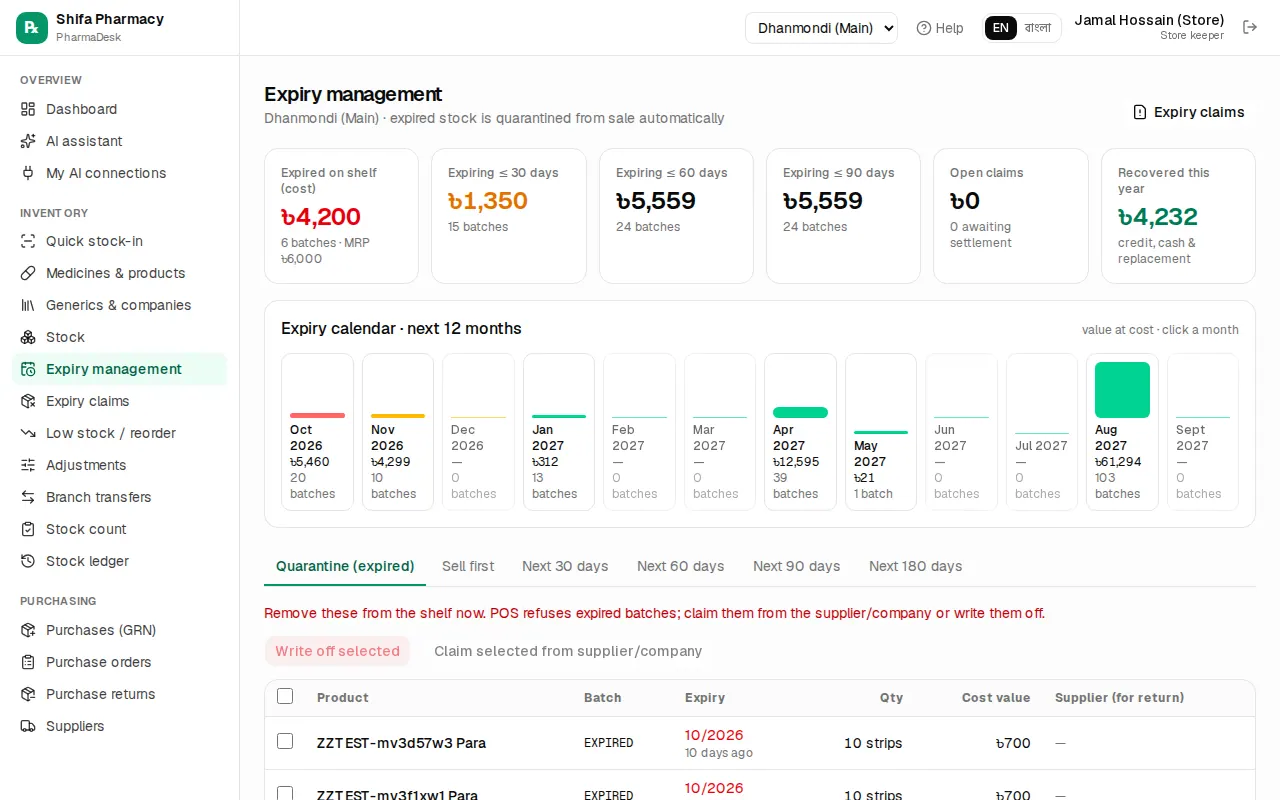
The tabs:
- Quarantine (expired): batches already past expiry. POS will not sell them. Take them off the shelf now.
- Sell first: stock expiring within 90 days, with a suggested markdown (15% at ≤30 days, 10% at ≤60, 5% at ≤90). Give that discount on the POS line.
- Next 30 days, Next 90 days and so on: what expires within that window, with the supplier name so you know whom to return it to.
Expired stock has two exits: a claim to the supplier or company, or a write-off.
To write off:
- On the Quarantine (expired) tab, tick the batches.
- Press Write off … selected and confirm.
Stock goes to zero and is recorded as an expiry loss. Write off only when there is no chance of getting anything back.
Expiry claims
Many companies take back expired medicine and give credit, cash or replacement goods. Record it as a claim in PharmaDesk so you can see what you got back and what is still pending.
- On the expiry page, tick batches and press Claim … selected from supplier/company. Or go to Inventory › Expiry claims › New claim.
- Under Claim from, choose Supplier or Company, then pick the supplier or company.
- PharmaDesk suggests that party's expired (or, if you choose, near-expiry) batches. Press Add next to the ones you want. Other batches can be added with the search box below.
- Set the Claim qty and fill Note / reference, e.g. "Given to MR Rafiq on visit".
- Press Save draft if you are not sending it yet. When you hand over the goods, press Save & send claim. The stock leaves your inventory at that moment.
- Print claim letter and send it with the goods.
When money or goods come back (settle):
- On the claim page press Settle.
- Enter what you received: Credit note (৳) (lowers what you owe the supplier), Cash received (৳) with Into account, or Replacement goods value (৳).
- If nothing more is expected, tick "Nothing more expected: close the claim"; the rest is counted as a loss.
- Press Record settlement. If the company refused the whole claim, press the red Reject button; the claim is marked Rejected.
If a claim was sent by mistake, press Cancel claim; with a reason, the stock comes back into inventory.
Low stock and reorder
Inventory › Low stock / reorder lists medicines at or below their reorder level, or out of stock but sold in the last 30 days. Each row shows Sold 30d, Days left and a suggested Order qty.
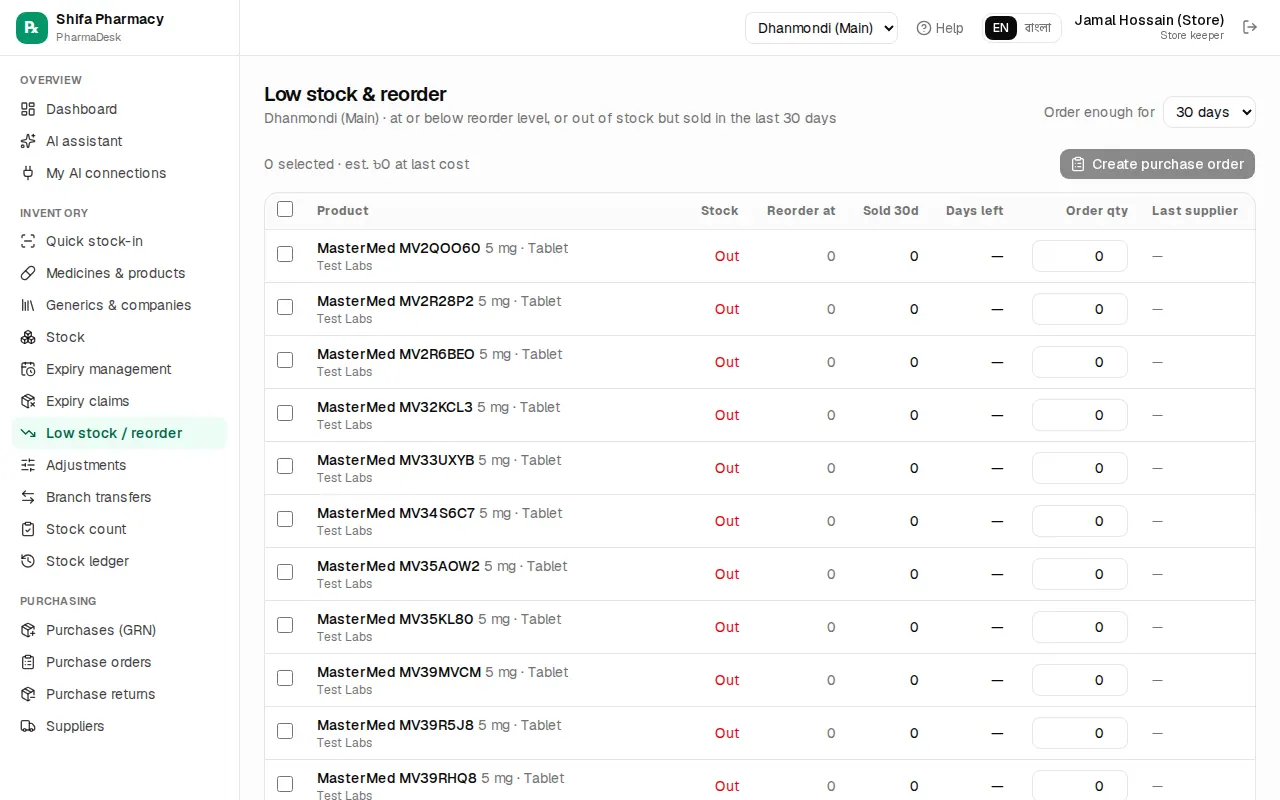
- At the top, choose Order enough for (15, 30, 45 or 60 days).
- Filter by supplier if you like.
- Tick what you want to order and adjust quantities.
- Press Create purchase order to open a pre-filled order. Or pick a supplier in WhatsApp to… and send the order straight on WhatsApp.
Sending orders and receiving goods are covered in Purchase orders.
Stock adjustments (damage, loss, correction)
When a strip is torn, a bottle breaks or something cannot be found, post an adjustment.
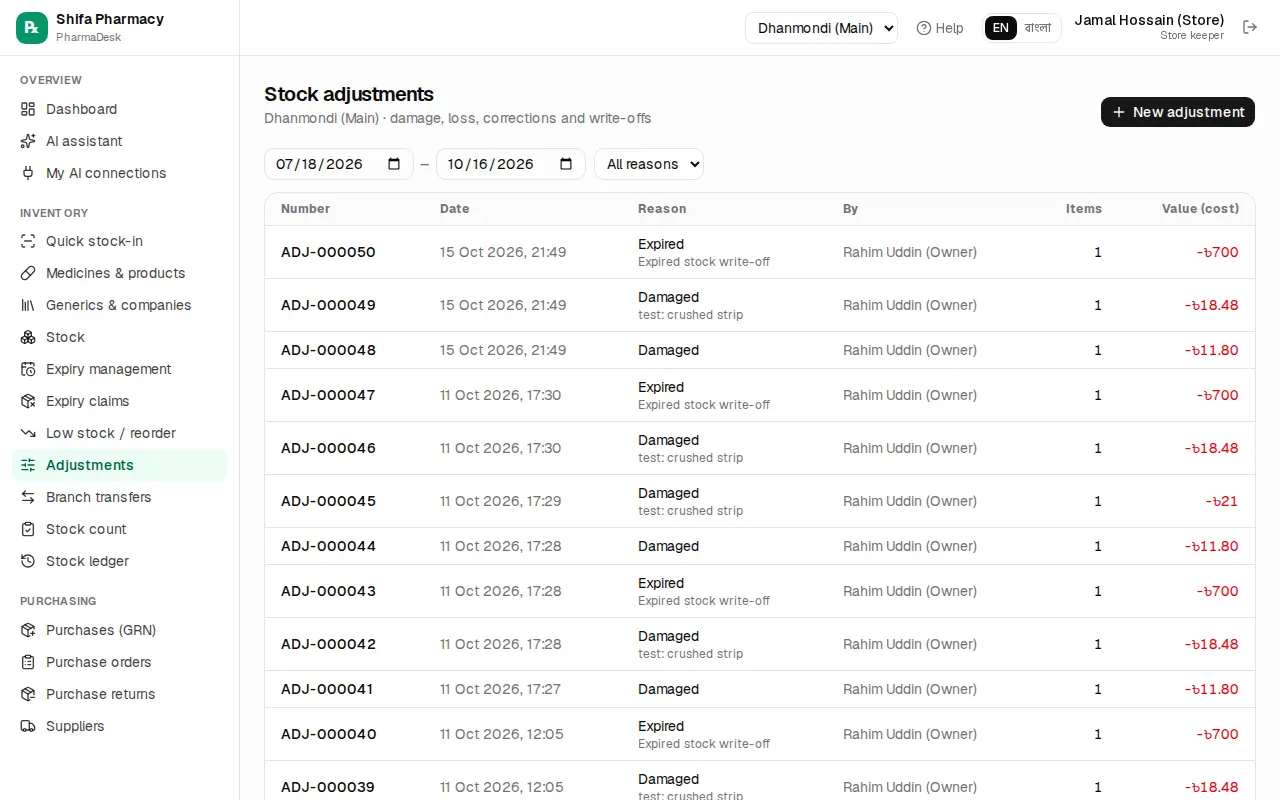
- Go to Inventory › Adjustments › New adjustment.
- Choose the Reason: Damaged, Expired, Lost and Theft remove stock; Found adds stock; Correction and Other work both ways.
- Write a short Note about what happened.
- Search the product, pick the batch and enter the quantity (for Correction, + adds and − removes).
- Check the value change at the bottom and press Post adjustment.
Sending and receiving branch transfers
With more than one branch, move stock with Inventory › Branch transfers.
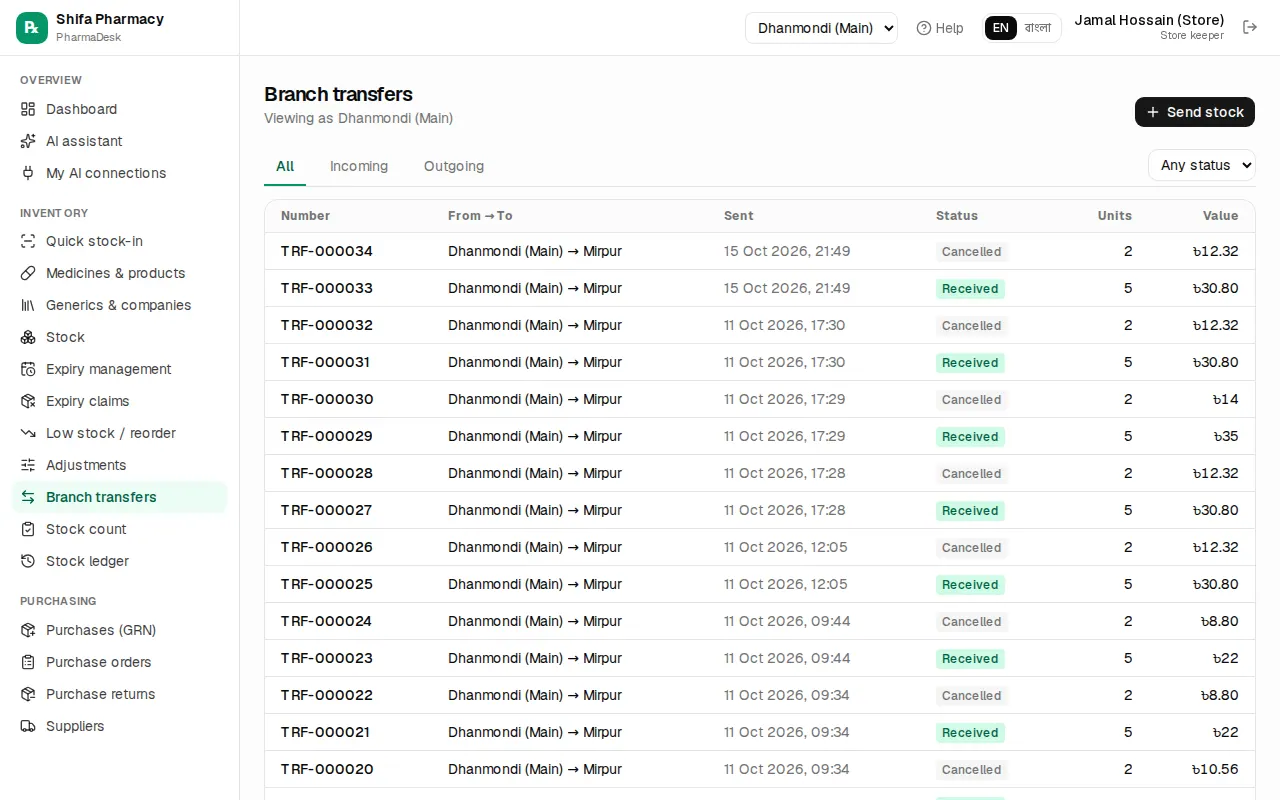
Sending (the branch the goods leave):
- Press Send stock.
- Choose To branch and add a note, e.g. "Sent with Rafiq, bag #3".
- Search products and enter batch and quantity.
- Press Send transfer. Stock leaves this branch now and the status becomes "In transit". Print challan and send it with the goods.
Receiving (the branch the goods arrive at):
- Pick your branch in Branch in the top bar.
- The transfers page shows a yellow note with how many are waiting. Open the transfer.
- Count and check the goods, then press Receive stock.
If something is wrong, either branch can press Cancel transfer; the stock goes back to the sending branch.
Stock count
Count now and then to match what is on the shelf with what the system shows. One rack at a time is easiest.
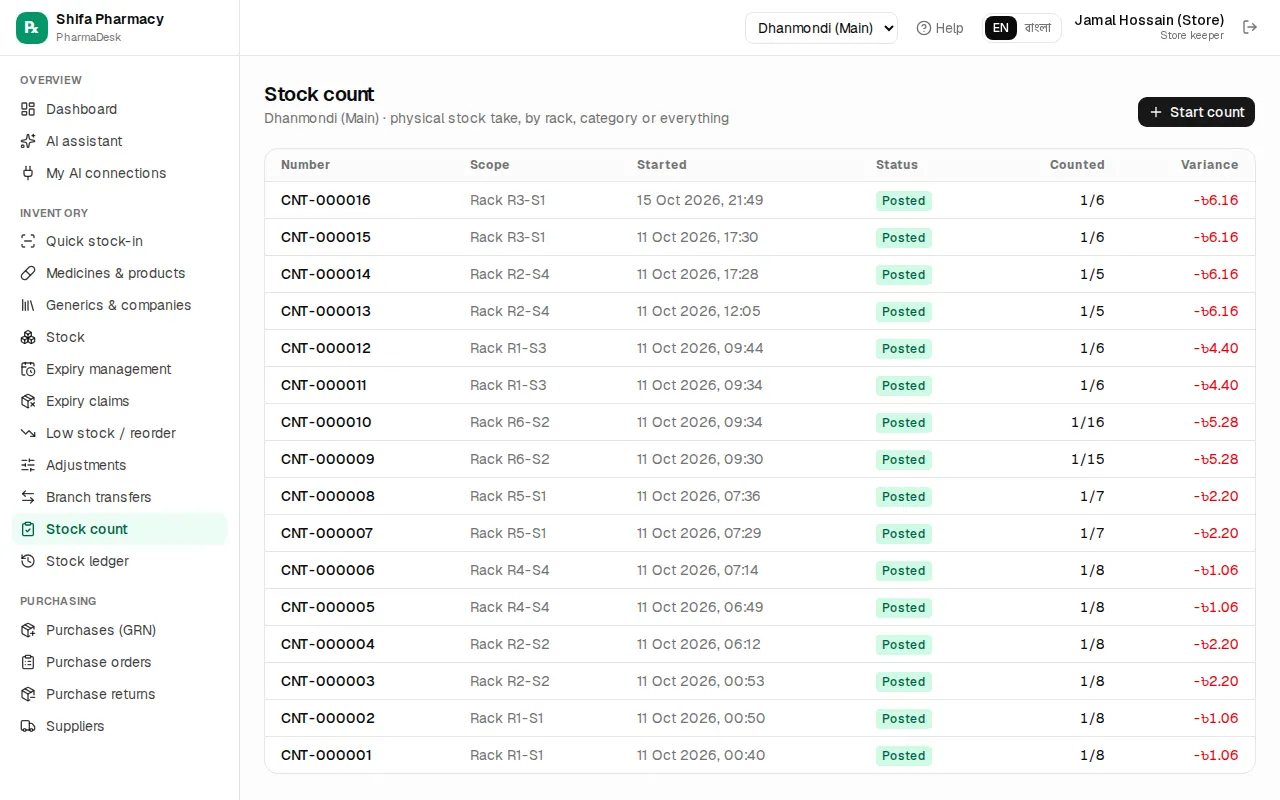
- Go to Inventory › Stock count › Start count.
- Choose Everything, One rack or One category. For a rack, type its start in Rack (starts with), e.g.
R1. - Press Start. System quantities are frozen now; sales during the count are fine.
- Count each batch on a phone or on a printed Print count sheet, and type the number in Counted (in base units, e.g. tablets).
- Press Save progress from time to time.
- Tick Only differences to recheck the shortages and overs.
- Press Post count. The differences are applied to stock; this cannot be undone.
Lines you did not count stay unchanged. To abandon a count, press Cancel count; nothing changes in stock.
Stock ledger
Inventory › Stock ledger lists every stock movement, newest first: purchases, sales, returns, adjustments, transfers, counts. Use Filter by product… and the type filter. When a medicine's stock looks odd, this is where you see who changed it, when and why. A product page also links here with Full ledger.