Owner & setup
Staff, attendance and salaries
Add employees, mark daily attendance, handle leave requests and salary advances, and pay salaries from the monthly salary sheet
For:OwnerManager
On this page
Staff records, daily attendance, leave, advances and monthly salaries all live in the HR menu. At month end the software works out absent days and advance instalments for you, and every salary you pay is posted to the books as an expense automatically.
Adding employees
- Open HR › Employees.
- Click Add employee.
- Enter Full name, Designation (for example Salesman, Pharmacist), Mobile, NID and Joining date.
- Enter the Monthly salary (৳) (required).
- Choose the Branch where they work, or leave Any / head office.
- If the person logs into the software, pick their user under Login account; otherwise leave No login.
- Click Save.
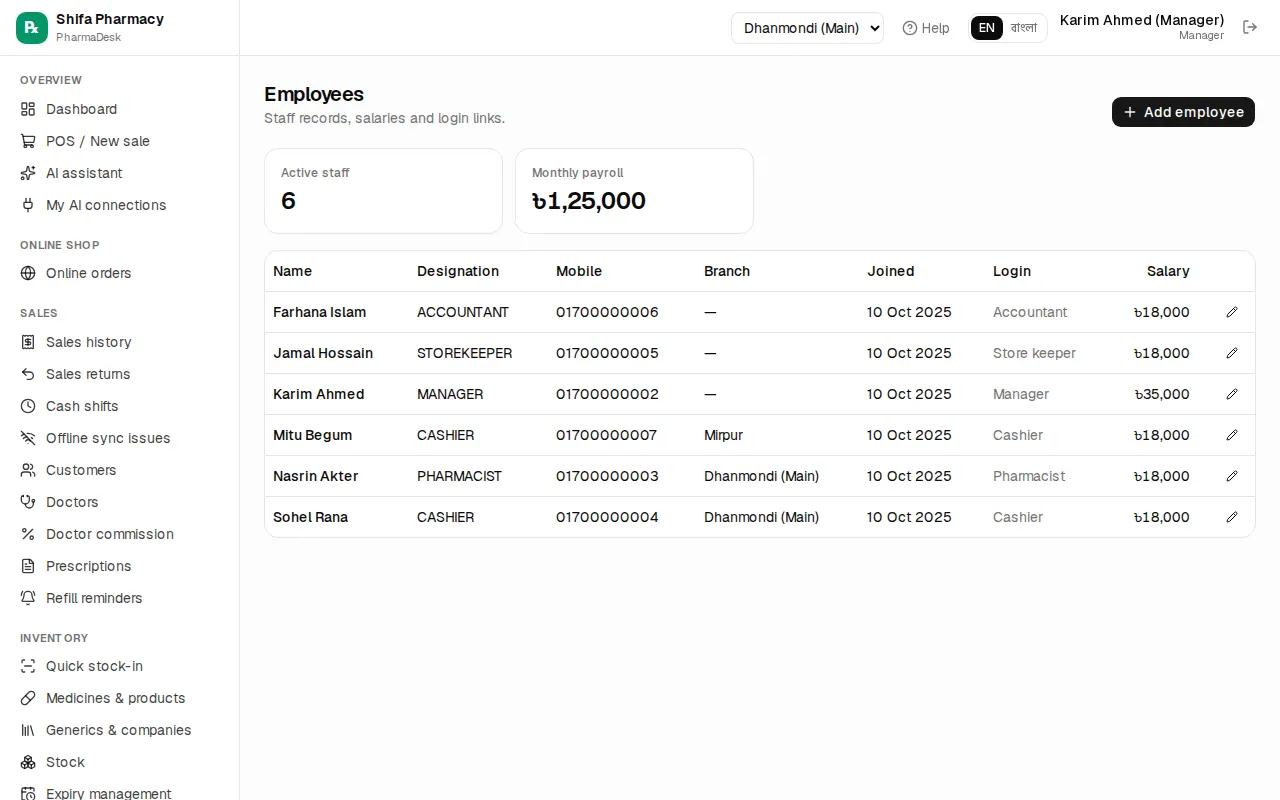
The top shows Active staff and Monthly payroll. Click an employee's name to open their page: attendance this month, leave balance, advances and salary history. You can Print ID card from there.
When someone leaves, don't delete them. Click the pencil icon and untick Currently employed. The list then shows Left next to their name and their salary history is kept.
Daily attendance
- Open HR › Attendance. The Daily sheet tab is open.
- Check the date box at the top (it starts on today).
- Next to each employee, click one button: Present, Late, Absent, Leave or Holiday.
- Optionally enter Check-in and Check-out times and a Note.
- When everyone is marked, click Save attendance at the bottom.
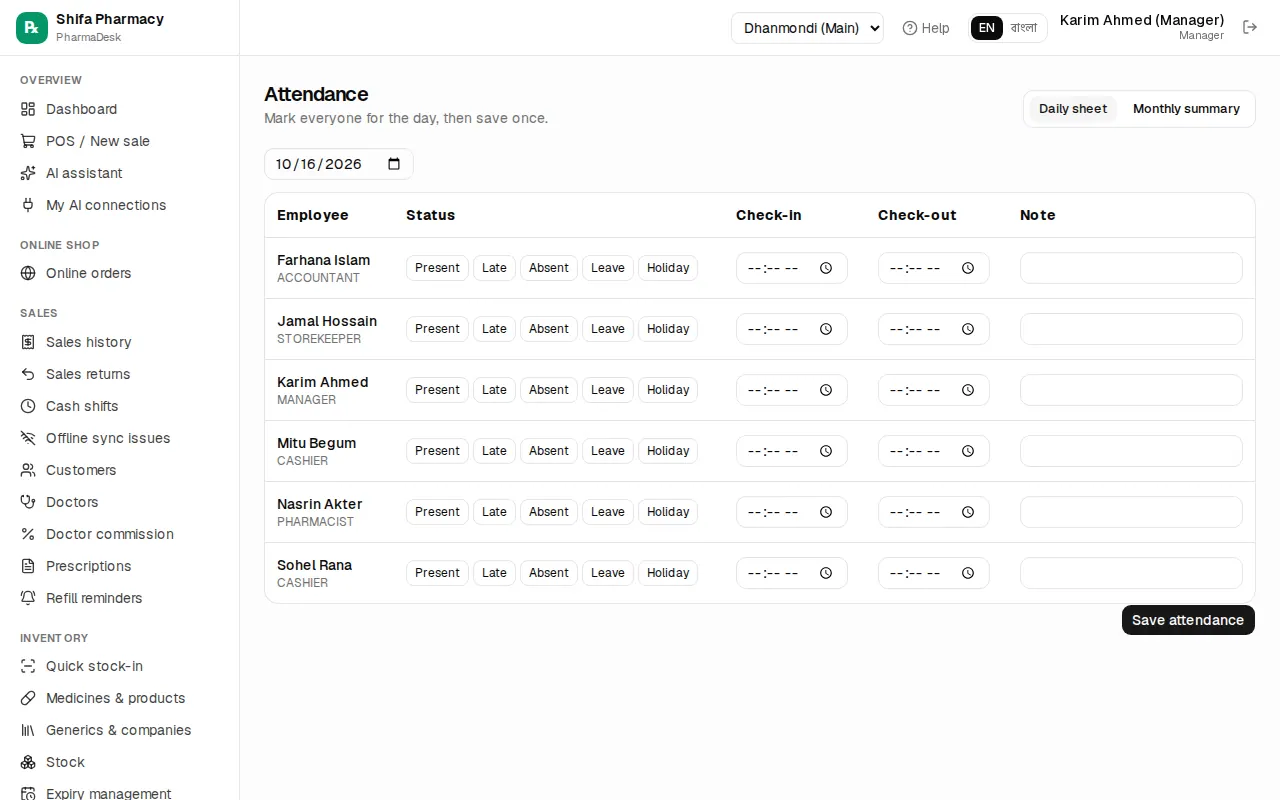
For the whole month, click the Monthly summary tab and choose the month. Each day shows a short letter (P present, L late, A absent, Lv leave, H holiday) with totals on the right.
Leave
- Open HR › Leave.
- Click New leave request.
- Choose the Employee and the Type: Casual, Sick, Annual or Unpaid leave.
- Enter the From date and To date, and a Reason.
- Click Save. The request appears in the list as Pending.
Then click one of the three buttons next to the request:
- Approve: paid leave.
- As unpaid: leave is granted, but these days count as absent days on the salary sheet.
- Reject: the request is refused.
The Balance table below shows each person's leave left this year (days left / entitled). Entitlements follow the Bangladesh Labour Act defaults: casual 10, sick 14, annual 10 days.
Salary advances
When a staff member asks for money before payday:
- Open HR › Salary advances.
- Click Give advance.
- Choose the Employee and enter the Amount (৳).
- In Recover per month (৳), enter the monthly instalment. Leave it blank to recover all of it from next month's salary.
- Under Paid from, choose the account the money left, and set the date.
- Click Save.
The top shows Outstanding advances and the total Recovered. Once fully recovered, the row shows Cleared.
Paying salaries at month end
- Open HR › Salaries. Choose the month at the top right.
- The list shows each person's Basic, Absent days, Advance due and the suggested Net salary.
- On the row of the person you are paying, click Pay.
- Check the form:
- Basic (৳): filled in with the monthly salary.
- Bonus / overtime (৳): enter if any.
- Other deduction (৳): fines, cash shortages and so on.
- Advance recovery (৳): this month's instalment is filled in.
- If there are absent days, a box like Deduct 2 absent day(s) is ticked. The formula is basic ÷ days in the month × absent days. Untick it to forgive the absence.
- Under Pay from, choose the account (usually the shop cash).
- Click Pay salary.
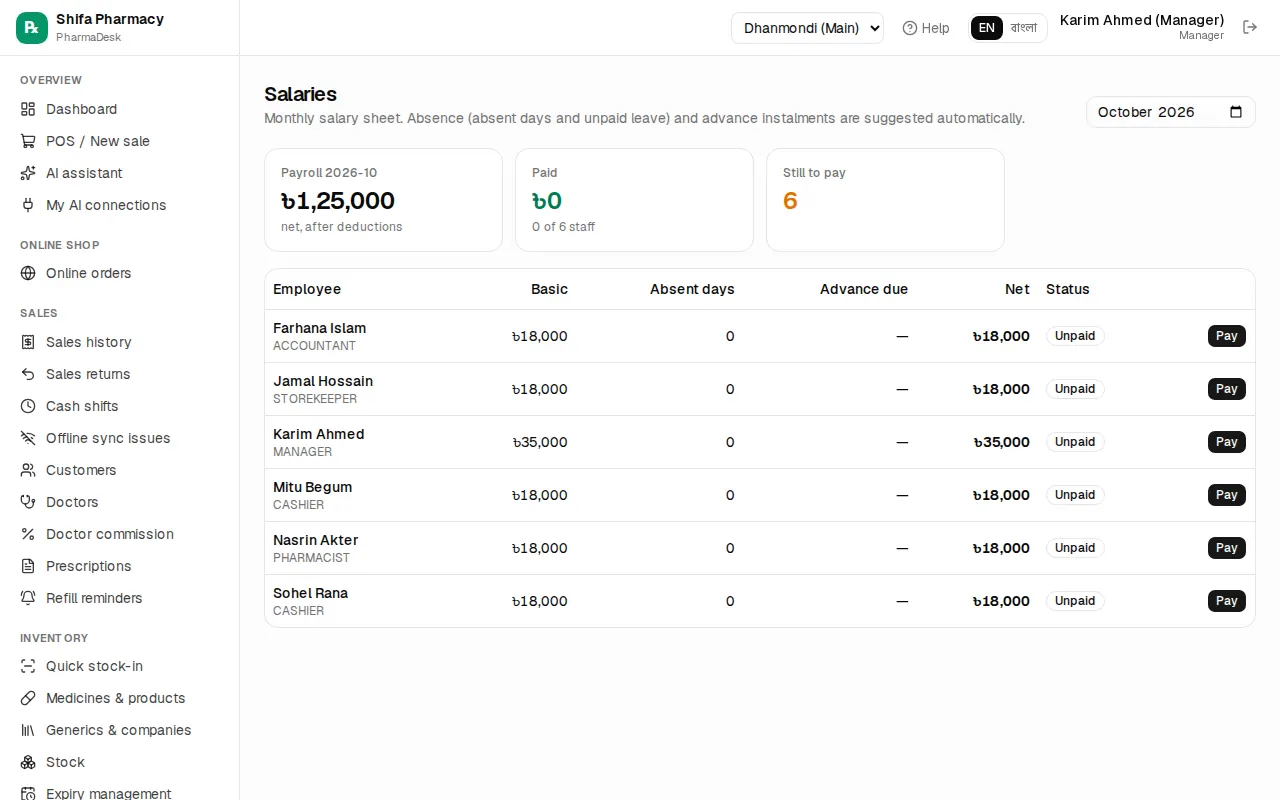
The row turns Paid and a Payslip link appears. Open the payslip, Print it and have the employee sign. If you made a mistake, click the undo-arrow icon next to it to cancel the payment; the money goes back to the account and you can pay again correctly.
The cards at the top show the Payroll for the month, how many staff are Paid and how many are Still to pay.