Daily selling
Online shop & online orders
Turn on your own online shop, see what customers see, confirm-pack-deliver online orders and connect couriers
For:OwnerManagerPharmacistCashier
On this page
Every pharmacy on PharmaDesk has its own online shop link. Customers order medicines or send a prescription photo there, and the order lands straight on your Online orders page. This chapter covers everything from switching the shop on to delivery.
Turning on the shop and sharing the link
Online shop › Shop settings shows Your shop link at the top.
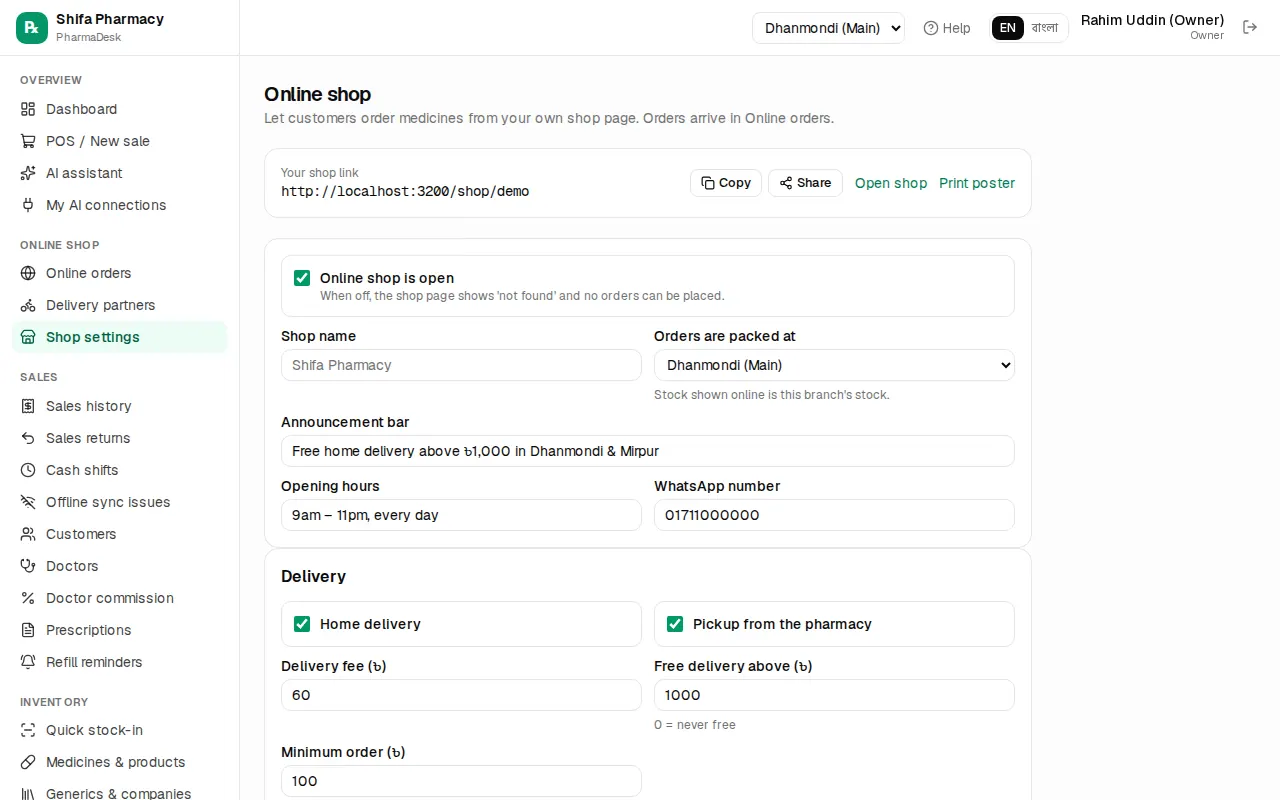
- Tick Online shop is open. When it is off, the shop page shows "Shop not found" and nobody can order.
- Fill Shop name, Opening hours and WhatsApp number. Use the Announcement bar for something like "Free delivery in Dhanmondi today".
- In Orders are packed at, pick the branch that handles orders. The shop shows that branch's stock.
- Under Delivery, tick Home delivery and/or Pickup from the pharmacy. Set Delivery fee (৳), Free delivery above (৳) and Minimum order (৳) (0 means not used).
- For a different fee per area, use Add area and enter the area name and fee. Other areas pay the default fee.
- Under Payment, tick Cash on delivery / pay at pickup. To accept bKash or Nagad send-money, enter the numbers; leave them empty to hide that option.
- Press Save shop settings.
Then spread the link:
- Copy the link for your Facebook page or WhatsApp, or press Share.
- Open shop to check it yourself once.
- Print poster opens an A4 poster with the shop link in large type. Put it on the counter.
To take card or bKash/Nagad payments online, follow Set up SSLCommerz, bKash and Nagad in the Online payment gateways box. Details are in Online payments.
What customers see
When a customer opens the link on a phone they see your shop name, delivery fee and payment options. There is a Bangla/English switch at the top.
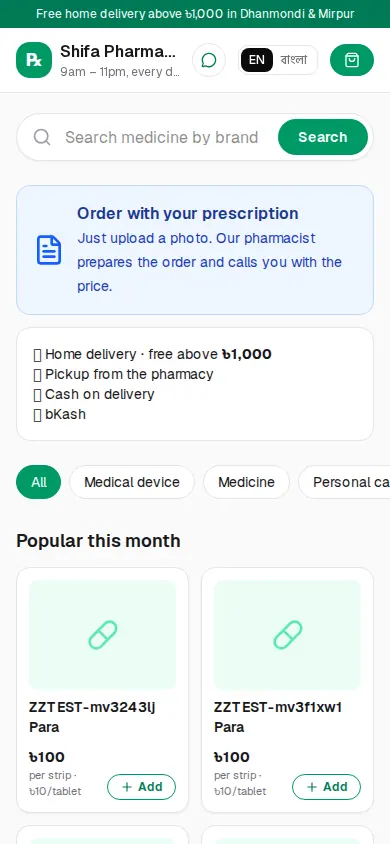
- They search by brand or generic name, browse categories and see "Popular this month".
- On a medicine's page they choose strip or single unit and press Add to cart. If it is out of stock, alternatives with the same generic are shown.
- In the cart they choose delivery or pickup, area, address and payment, then press Place order. If the cart has prescription-only medicines, a prescription photo is required.
- They can also order with just a photo: Order with your prescription › add photos › Send prescription. Your pharmacist prepares the order and calls with the price.
- After ordering, the customer gets a tracking page (the link is also sent by SMS) showing the status, rider name and courier tracking. Until you confirm it, the customer can Cancel order themselves.
Handling online orders
Keep Online shop › Online orders open: it checks for new orders every 20 seconds, beeps twice and shows a banner when one arrives.
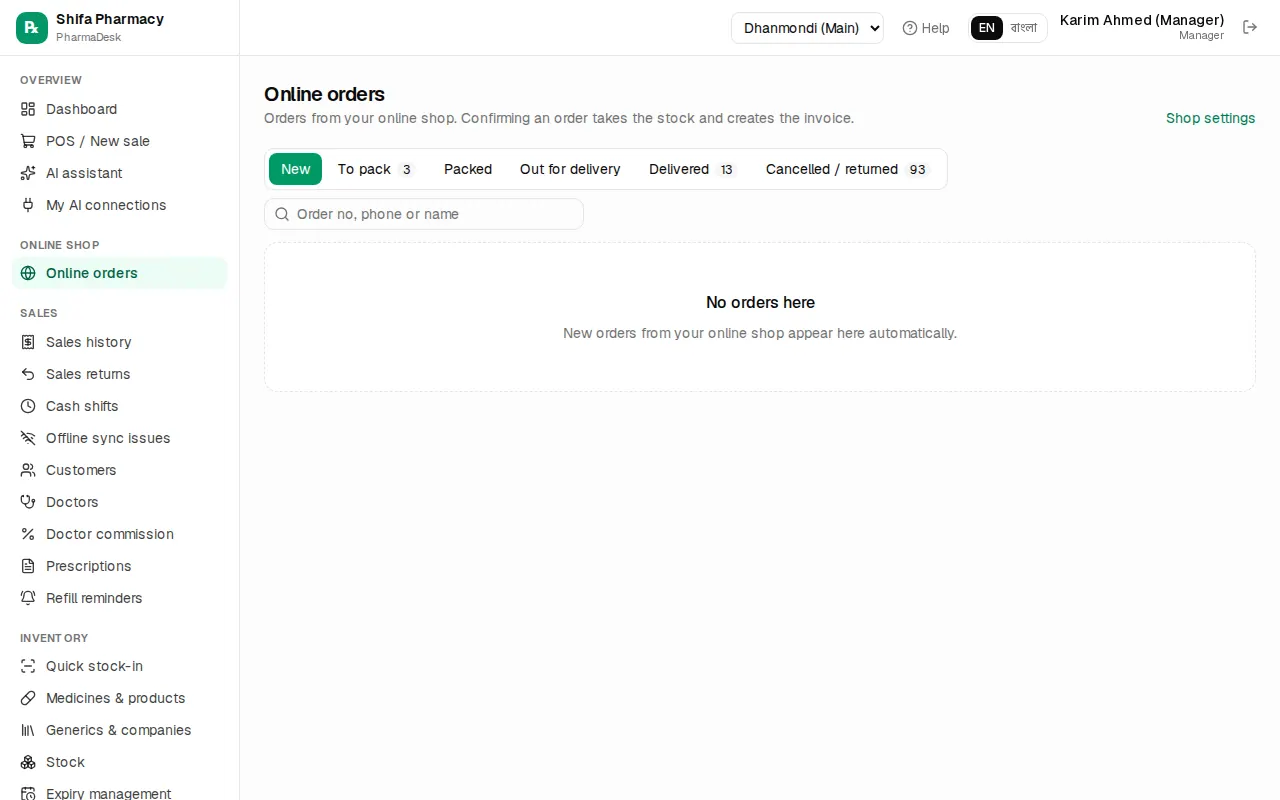
The tabs follow the work: New, To pack, Packed, Out for delivery, Delivered, Cancelled / returned. Search by order no, phone or name. Click the order number to open it.
One order, step by step
- Check and fix: If there are prescription photos, open them on the right to zoom and rotate. Optionally press Start review; the status becomes "Pharmacist review".
- Change items: Change quantities, press ⇄ (Substitute with another brand) for an out-of-stock item, or add medicines. For a prescription-only order, this is where you add the medicines. Add a Discount (৳) if needed, then press Save items.
- Check payment: For bKash/Nagad send-money, match the customer's transaction ID in your merchant app and press Mark verified. If they never sent money, press Switch to COD.
- Confirm: Press Confirm order. Stock is taken and the invoice is created at this moment; the customer gets an SMS.
- Pack: Print the Invoice / packing slip, put it with the goods and press Mark packed (for pickup orders, Ready for pickup).
- Dispatch: Enter Rider name and Rider phone and press Send out for delivery. With a courier connected, use Book courier instead (see below).
- Finish: When the rider brings the cash back, pick the cash account and press Delivered. For pickup orders press Customer collected when they take it.
Cancelling and returns
- Cancel order: a reason is required and the customer sees it. Anyone can cancel before confirmation; after confirmation only a manager or the owner can, and the invoice is voided and stock comes back.
- Returned by customer: if the customer refuses an order that is out for delivery, a manager presses this; the invoice is voided and stock comes back.
- Whether the delivery charge is refunded when a whole order comes back is set by the owner in Admin › Settings › Sales & POS with "Refund the delivery charge when an online order comes back in full". When it is off, the customer still pays the delivery charge.
Delivery partners (couriers)
If you have a Pathao, Steadfast or RedX merchant account, connect it in Online shop › Delivery partners (owner only).
- On the courier's card, enter the keys or login from their merchant panel.
- Tick Use this courier. With more than one, make one the Default courier. You can start in Sandbox (test mode).
- Save, then press Test connection.
- Copy the Status webhook URL into the courier's panel so delivery updates arrive instantly.
Now, on a confirmed or packed home-delivery order, the Courier box shows Book courier; check the address and press Book. When the courier picks up, the order moves to "Out for delivery" by itself, and to "Delivered" when it arrives.
Cash on delivery collected by a courier is shown under Cash held by couriers until they pay you. When the courier sends the money, enter the amount and the account it came into, then press Record payout.