Owner & setup
Payments, licence & AI
Online payment gateways, your licence and subscription, the AI assistant, connecting Claude/ChatGPT, and the clinic link
For:Owner
On this page
This chapter is for the owner: taking bKash, Nagad or card payments in the online shop, understanding your licence and subscription, turning on AI, and linking with a ClinicDesk hospital. Only the owner can change these settings.
Online payments
Admin › Online payments connects your own SSLCommerz, bKash and Nagad merchant accounts. Online-shop customers pay on the gateway's page and the order is marked paid automatically.
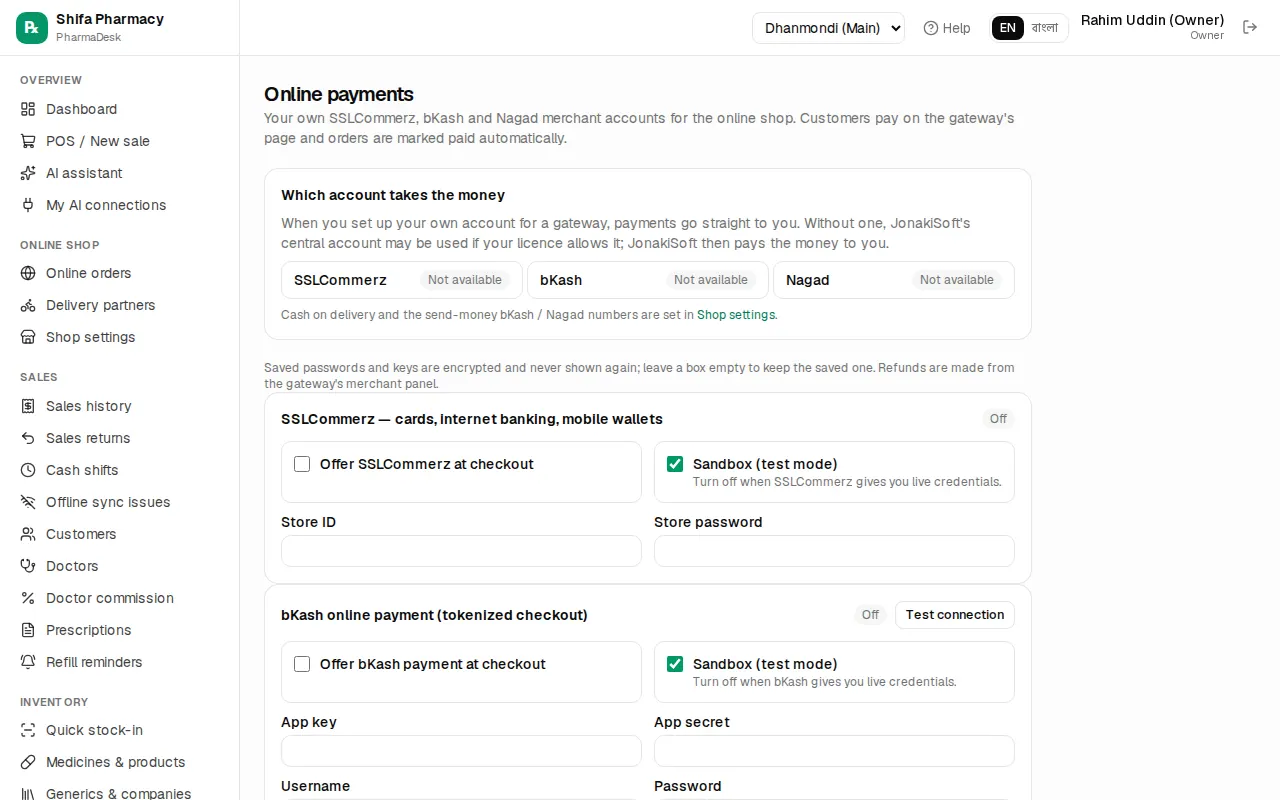
Which account takes the money shows one of these next to each gateway:
- Your account — your own merchant account is set up; the money goes straight to you.
- JonakiSoft central — you have no own account, but your licence allows JonakiSoft's account to be used; JonakiSoft then pays the money to you.
- Not available — this gateway can't be used right now.
Connecting your own gateway (example: bKash):
- Enter the App key, App secret, Username and Password you got from bKash.
- Tick Offer bKash payment at checkout.
- Keep Sandbox (test mode) ticked while testing; untick it when bKash gives you live credentials.
- Press Save payment settings.
- Press Test connection to check the details work.
Nagad needs the Merchant ID, Merchant number, Merchant private key and Nagad public key; SSLCommerz (cards, internet banking, mobile wallets) needs the Store ID and Store password. SSLCommerz has no test button. A badge next to each gateway shows Off, Credentials missing, On · sandbox or Live.
Cash on delivery and the send-money bKash / Nagad numbers are not set here but in Online shop › Shop settings (see Online shop). Money taken through JonakiSoft's central account — collected, fees, settled — is listed at the bottom under Payments collected by JonakiSoft.
If online payments are not in your plan, a yellow message appears at the top; contact JonakiSoft to turn them on.
Licence and subscription
Online (cloud) PharmaDesk: on Admin › Settings, the Licence & features card shows the Licence status (ACTIVE, GRACE and so on), the plan, Valid until, Last synced, and which modules your plan includes. Modules outside your plan are marked "not in plan". The licence is checked once a day and updated at once when JonakiSoft changes it. If JonakiSoft has switched something on and you don't see it yet, press Sync licence now.
- Modules not in your plan are hidden from the menu. Opening such a page shows "… is not part of your plan"; everything else keeps working.
- Grace days: the licence has expired but a few days of grace remain — a yellow banner appears on every page: "Your licence has expired. PharmaDesk keeps working until {date}; please renew." Press Details for a page with contact details.
- Licence locked (expired, suspended or revoked): every page goes to the licence page. All your medicines, sales, stock and accounts are saved and open again as soon as the licence is active. The online shop is paused until then. The page shows the phone, WhatsApp and email of JonakiSoft (or whoever set PharmaDesk up for you).
Free trial and subscription: from 7 days before the end, a banner shows "N days left". When it ends, the subscription page appears; contact the listed support to renew. Sales made offline on this device are kept and sync automatically after renewal.
Installed (on-prem) PharmaDesk: here the licence is a file. The Licence button at the top of Settings shows the licence number, plan, branches and users in use, and expiry. To install a new or renewed licence:
- Paste the licence text into the box, or press Open licence file and choose the file.
- Press Install licence.
You can't have more active users than the licence allows. Without a valid licence every page goes to this licence page; the data stays on the computer.
AI assistant
Overview › AI assistant answers questions in Bangla or English from your pharmacy's data: sales, stock, expiry, reorders, dues and profit. Owners, managers, pharmacists, store keepers and accountants can use it.
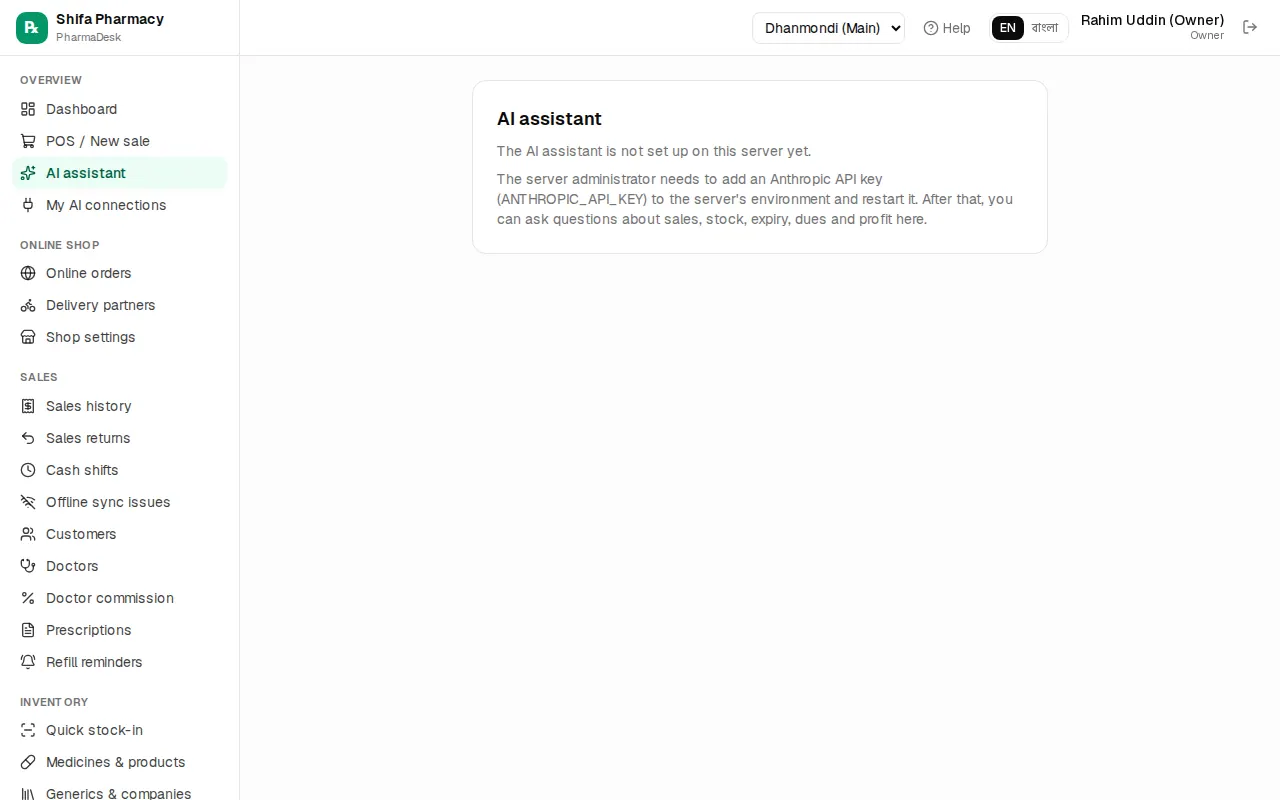
Turning it on: in Settings › Stock alerts & reminders tick AI assistant and press Save settings. If the server has no API key, the page says the assistant is not set up yet — ask the server administrator.
Using it:
- Type a question in the box at the bottom, such as "Who owes me the most?" or "আজকের বিক্রি কত?", or press one of the example questions.
- Press
Enterto send (Shift+Enterfor a new line). - Under each answer, "Used: …" shows which data was looked up.
- Press New chat for a new topic. Earlier conversations stay in the list on the left (shown on wider screens, not on phones).
Connecting Claude and ChatGPT (MCP)
Your staff can also ask about the pharmacy from their own Claude, ChatGPT or Claude Code. This is a separate feature that must be in your plan. Open Admin › AI assistants (MCP).
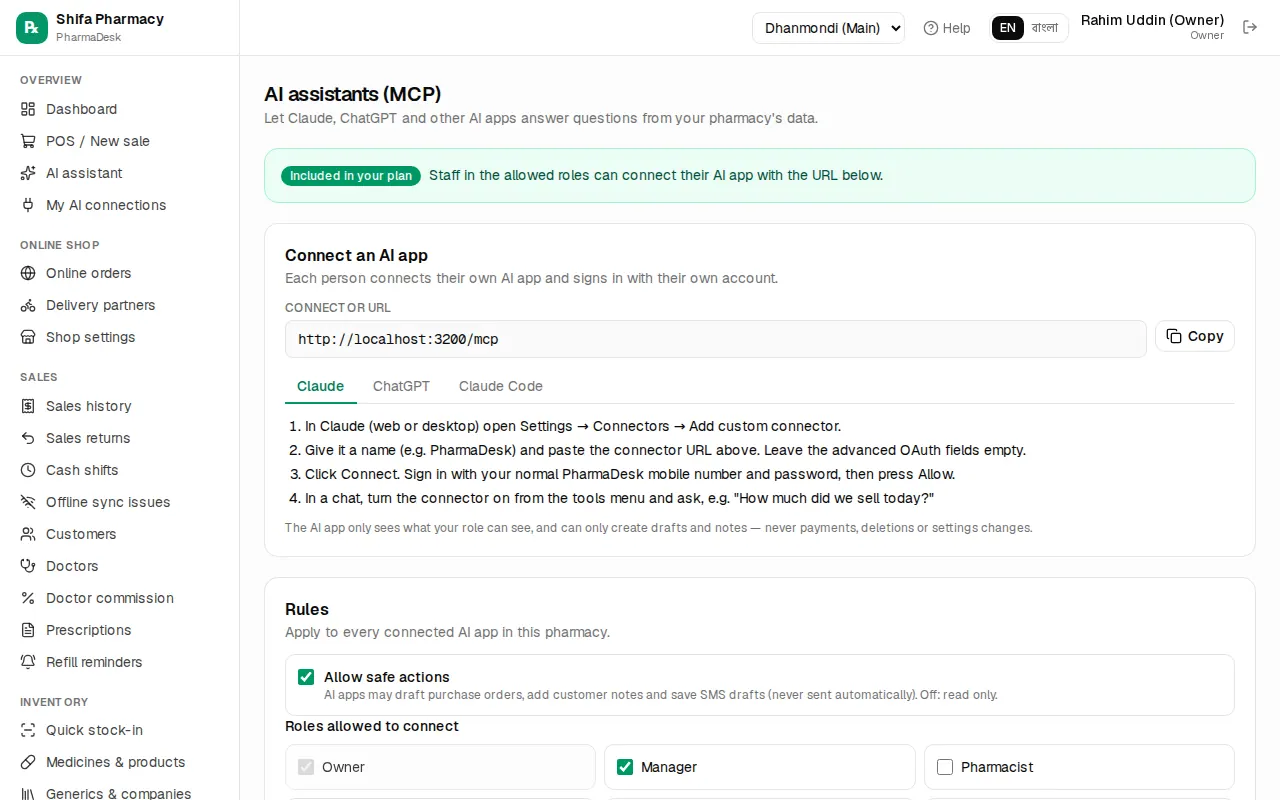
- Check the badge at the top says Included in your plan.
- Under Connect an AI app, press Copy next to the Connector URL.
- Pick the Claude, ChatGPT or Claude Code tab and follow its steps. In Claude, for example: Settings → Connectors → Add custom connector, paste the URL, Connect, then sign in with your PharmaDesk mobile number and password and press Allow.
- Under Rules, decide on Allow safe actions. On: AI apps may draft purchase orders, add customer notes and save SMS drafts (never sent automatically). Off: read only.
- Under Roles allowed to connect, tick the roles (the owner always can; at first only owner and manager), then press Save.
Each person connects with their own account and only sees what their role can see. AI apps can never make payments, delete things or change settings. Use Revoke in Connected apps to cut any connection; Recent activity shows the last 50 requests. Staff see their own connections under Overview › My AI connections.
Clinic link
Linking with a hospital or clinic that runs ClinicDesk sends its prescriptions straight to you and lets you charge admitted patients' medicines to their hospital bill. Open Admin › Clinic link.
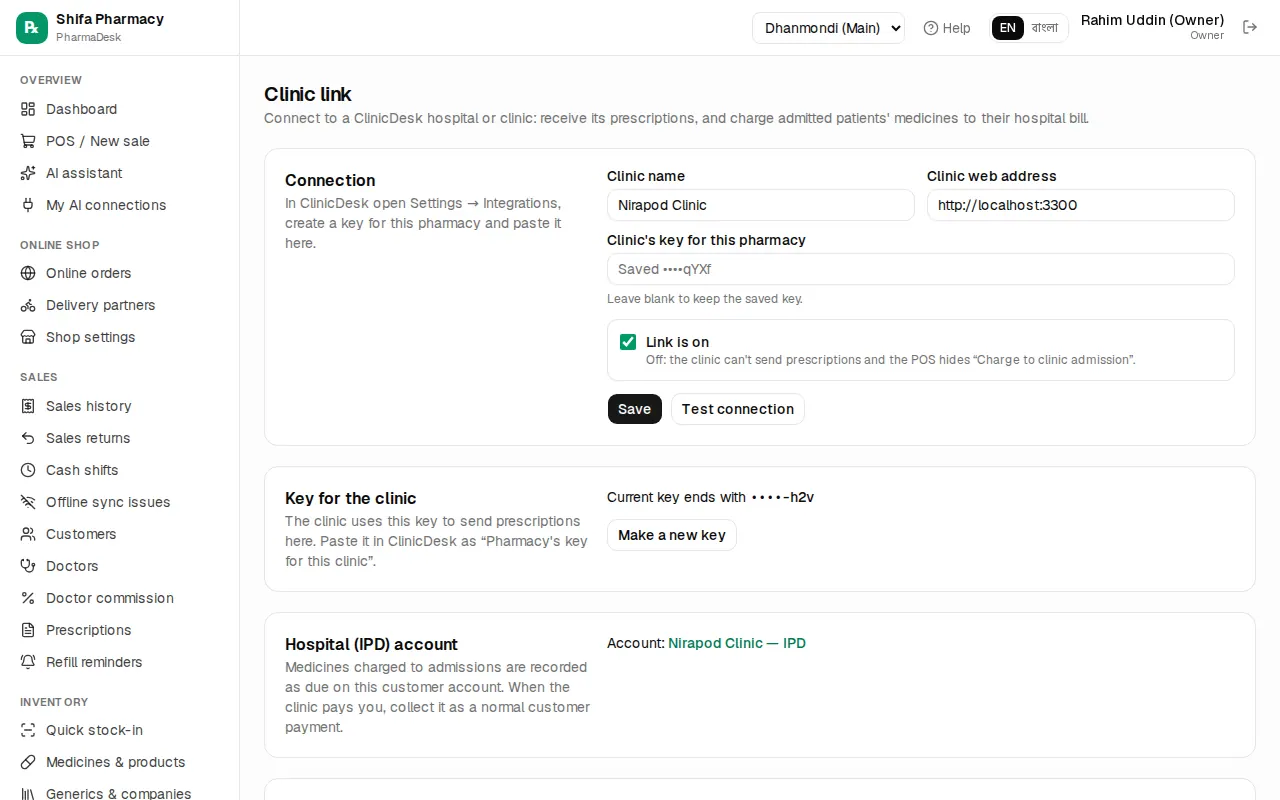
- In ClinicDesk, create a key for your pharmacy under Settings → Integrations.
- Here, enter the Clinic name, Clinic web address and Clinic's key for this pharmacy. Keep Link is on ticked and press Save.
- Press Test connection; if it works it shows how many patients are admitted right now.
- Under Key for the clinic, press Generate key, copy it immediately (it won't be shown again) and paste it into ClinicDesk.
- Under Hospital (IPD) account, press Create IPD account. Medicines charged to admissions are recorded as due on this customer; when the clinic pays, take it as a normal customer payment.
The POS then offers "Charge to clinic admission". The Clinic charges list shows each charge's status; use Send waiting now for waiting ones, Retry now for failed ones, and Mark resolved when it was settled by hand at the clinic.
Common mistakes
- Leaving Sandbox on after getting live credentials. No real money comes in.
- Promising online payment when no gateway is available. Check that the badge doesn't say Not available.
- Ignoring the grace banner. When grace ends the app locks for everyone; renew in time.
- Leaving the page without copying the clinic key. You then need Make a new key, and the old one stops working.