Reports
Reports and dashboard
Read today's numbers on the dashboard, find which report answers which question, filter by date and branch, export to CSV or print, and prepare the monthly VAT return (Mushak)
For:OwnerManagerAccountant
On this page
How is the shop doing, how much profit did you make, which medicines are sitting on the shelf, who owes you money: PharmaDesk works all of this out from the sales, purchases and expenses you already enter. No separate register is needed. This chapter shows where to find each number and how to print it or take it into Excel.
Dashboard: the shop at a glance
After you log in, Overview › Dashboard opens first. The cards show:
- Today's sales and Today's gross profit (after returns)
- Cash in drawer: how much should be in the drawers of the open shifts right now
- Sold on credit today
- This month's sales, This month's gross profit, total Customer dues and Supplier payables
- Low stock products, medicines expiring soon and Expired in stock
Below that you see a Last 30 days sales chart, Payments this month (how much came in by cash, bKash, Nagad, card…), Top 10 products this month and Recent sales. Click any card to jump to the matching page; for example Low stock products opens the reorder list.
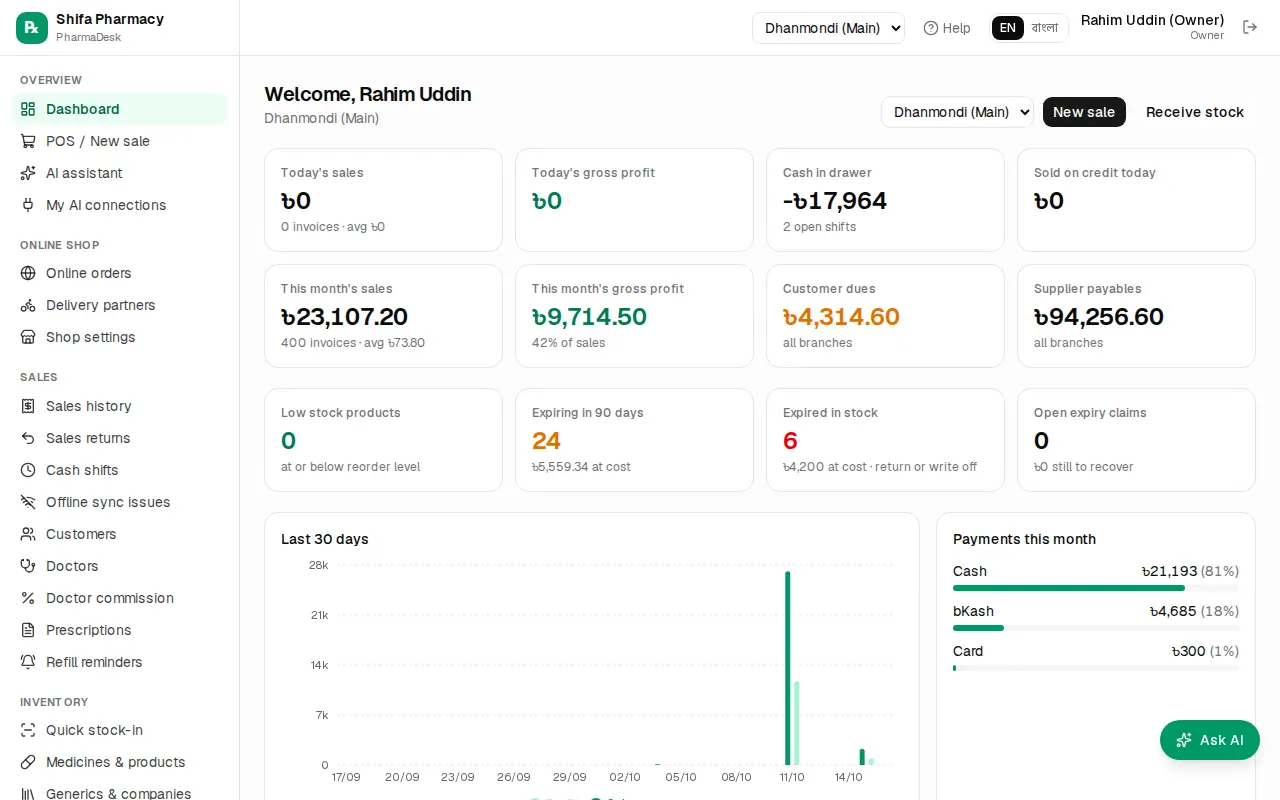
With several branches, owners and managers can pick All branches from the list at the top right to see the whole business at once.
Opening a report
- In the sidebar, click Reports › All reports.
- Reports are grouped in five sections: Sales, Inventory, Purchasing, Finance and Compliance.
- Click the card of the report you need.
- Change the filters at the top (see below). The table updates as soon as you change a filter.
- To go back, click the ‹ Reports link at the top left.
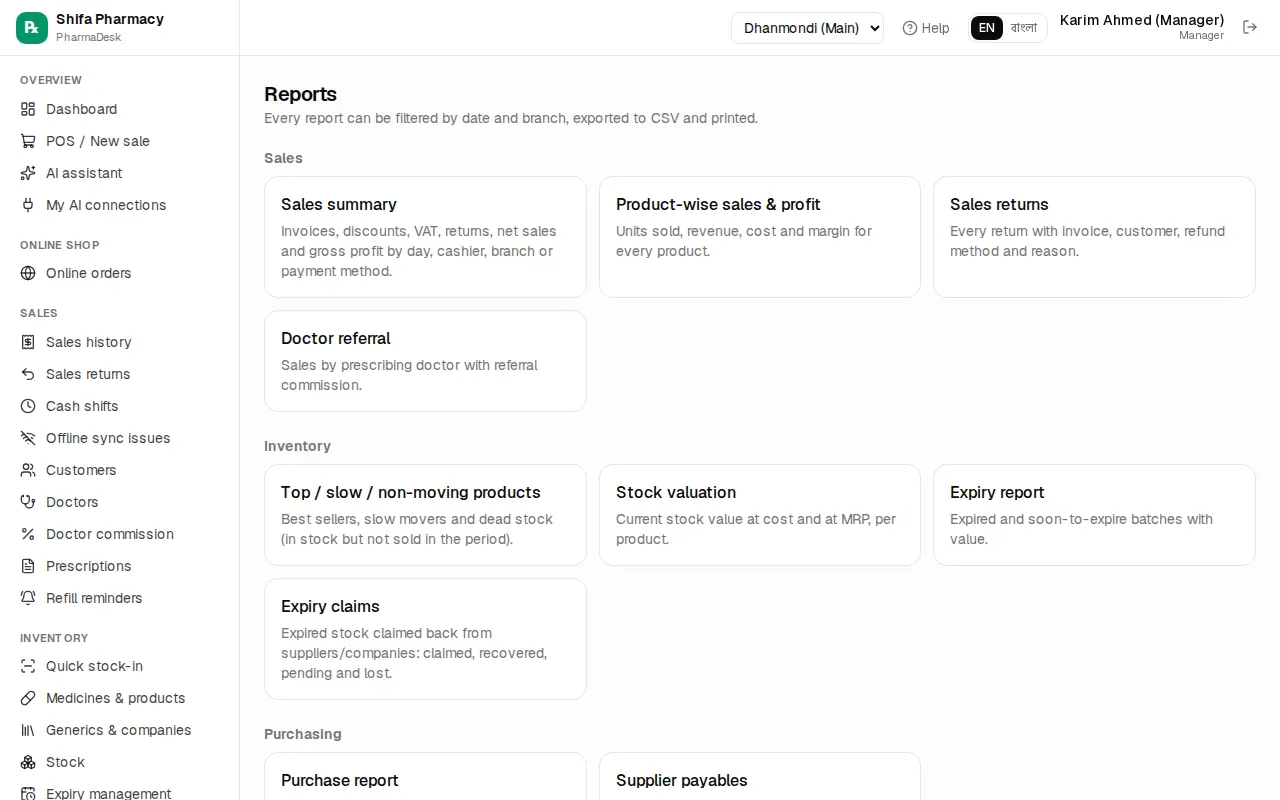
Which report answers which question
| Your question | Report |
|---|---|
| How much did I sell today / this month? How much did each cashier sell? | Sales summary |
| Which medicines make the most profit? | Product-wise sales & profit |
| What is my real profit after expenses and salaries? | Profit & loss |
| Which sales were returned, and why? | Sales returns |
| How much was sold on each doctor's prescriptions, and what commission is due? | Doctor referral |
| Which medicines sell fast, which are not moving? | Top / slow / non-moving products |
| How much stock do I have, in taka? | Stock valuation |
| Which batches have expired or are about to? | Expiry report |
| How much expired stock did companies take back? | Expiry claims |
| How much did I buy from each supplier? | Purchase report |
| How much do I owe each supplier, and for how long? | Supplier payables |
| How old are my customers' dues? | Customer dues aging |
| Where did the money go? | Expenses by category |
| What came in and went out of cash, bank and bKash each day? | Cashbook |
| How much VAT did I collect and pay this month? | VAT report |
| Who bought narcotic / psychotropic medicines (for DGDA inspection)? | Controlled drugs register |
The Finance section has two more cards: Trial balance, income statement, balance sheet (the accounting books, see Accounting and expenses) and Day-end cash closing (see Cash shifts and closing).
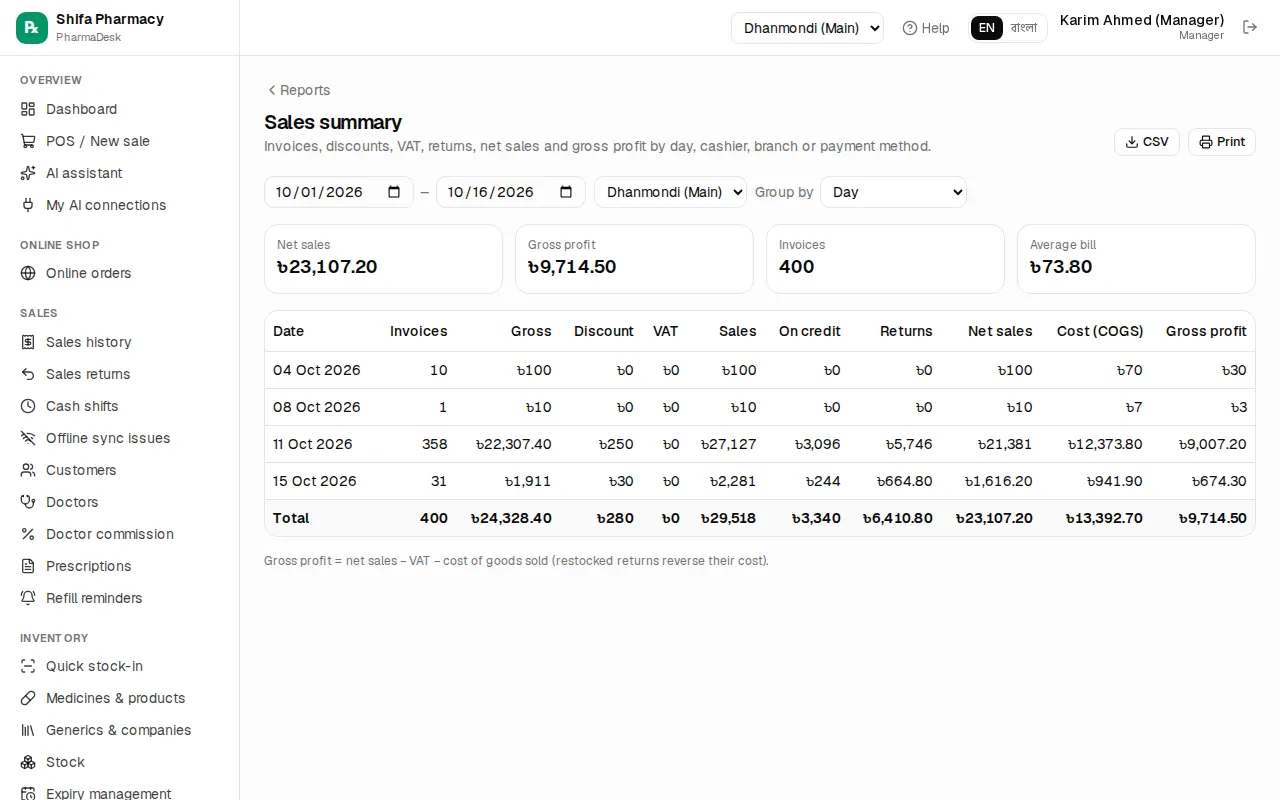
Filters: date, branch and more
- Date: two boxes, start and end date. If you change nothing, the report covers the 1st of this month to today. For today only, put today's date in both boxes.
- Branch: with several branches, choose one branch or All branches. A user tied to one branch only sees their own branch.
- Group by: for example Sales summary by Day, Cashier, Branch or Payment method.
- Sort by: Product-wise sales & profit by Revenue, Profit, Units or Margin %.
- Expiring within (days): in the Expiry report, type the number of days and press
Enter. - Account: in the Cashbook, one cash/bank account or All accounts.
Some reports have no date because they show the position right now: Stock valuation, Expiry report, Supplier payables and Customer dues aging.
CSV download and print
Every report has two buttons at the top right:
- CSV downloads the table as a file. Open it in Excel or Google Sheets to work with the numbers. The total row is included.
- Print opens the print dialog. The pharmacy name, report name, branch and dates are printed at the top automatically; filters and menus are left out.
VAT return (Mushak)
If your pharmacy has a BIN, you file a VAT return every month. The Reports › VAT return (Mushak) page prepares the working papers for it.
- Open Reports › VAT return (Mushak).
- Choose the month under Tax period (up to the last 24 months).
- With several branches, normally keep All branches, because the whole business has one BIN.
- Look through the three tabs: Summary (Mushak 9.1), Sales register (Mushak 6.2) and Purchase register (Mushak 6.1).
- CSV and Print download or print the tab that is open. The printout shows the pharmacy name, BIN and address at the top.
What the three tabs contain:
- Summary (Mushak 9.1): sales value, VAT-applicable and exempt sales, Net output VAT, Net input VAT, and finally Net VAT payable (or Net VAT credit (carry forward)).
- Sales register (Mushak 6.2): every invoice of the month.
- Purchase register (Mushak 6.1): every purchase of the month, with the supplier's invoice number.
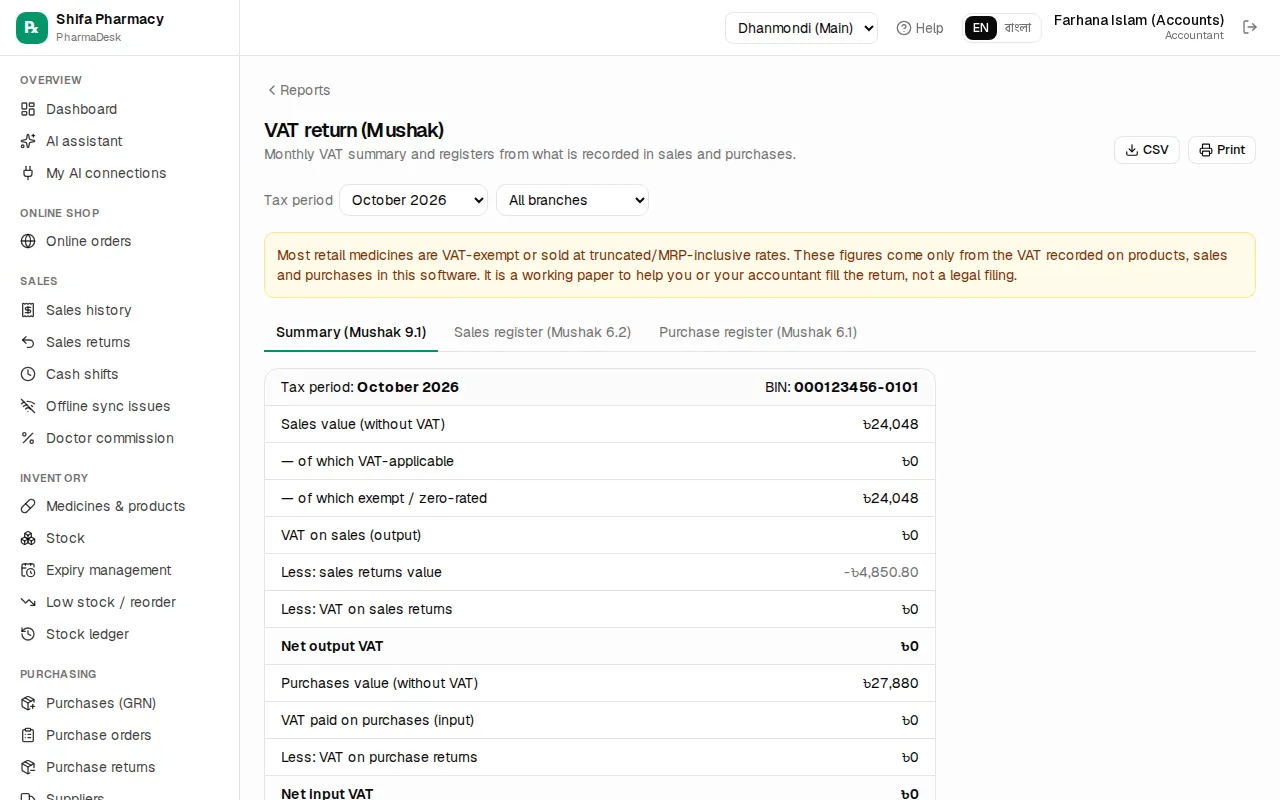
Read the yellow box carefully: most retail medicines are VAT-exempt or sold at MRP-inclusive rates, and these figures come only from the VAT recorded in the software. It is a working paper to help fill the return, not a legal filing. Have your accountant check it.
Mushak 6.3 tax invoice for one sale
When a buyer asks for a VAT invoice:
- Open the invoice from Sales › Sales history.
- Click the Mushak 6.3 button at the top. An A4 tax invoice opens in a new tab.
- Click Print at the top. Click Close when done.