Getting started
Getting started
What PharmaDesk is, how to sign in, what is where on the screen, switching language and branch, and which menus each role sees
For:OwnerManagerPharmacistCashierStore keeperAccountant
On this page
PharmaDesk keeps your whole pharmacy in one place: sales (POS), stock and expiry, purchases, customer dues, expenses, accounts and reports. This chapter covers the first-day basics so anyone on the team can start with confidence.
Signing in
PharmaDesk runs in a web browser (Chrome or Edge work best). The owner creates an account for you; you sign in with your Mobile number and Password.
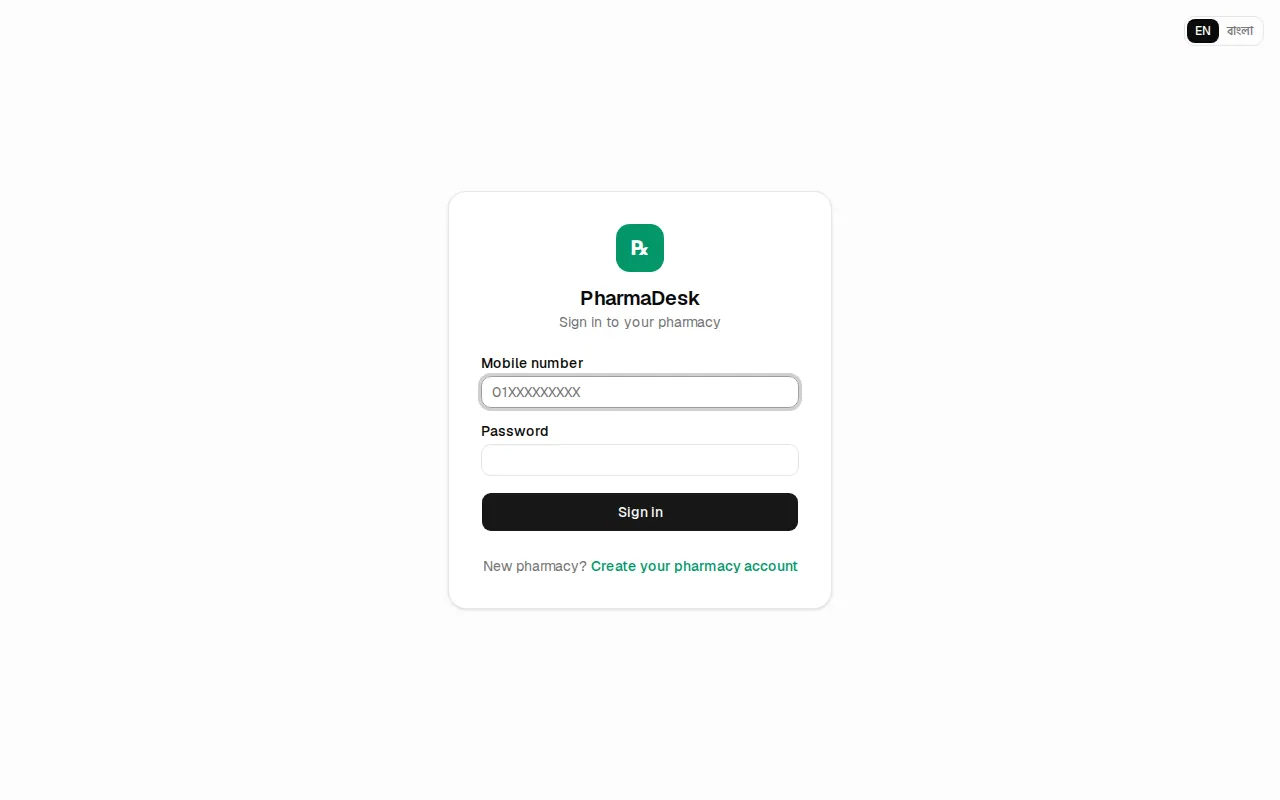
- Open your pharmacy's PharmaDesk address in the browser. The page says "Sign in to your pharmacy".
- Type your 11-digit number in Mobile number (for example
01XXXXXXXXX). - Type your Password.
- Press Sign in.
Most roles land on the Dashboard after signing in. Cashiers go straight to POS / New sale so they can start selling at once.
The sign-in page has an EN / বাংলা switch at the top right, so you can pick the language before signing in.
The screen layout
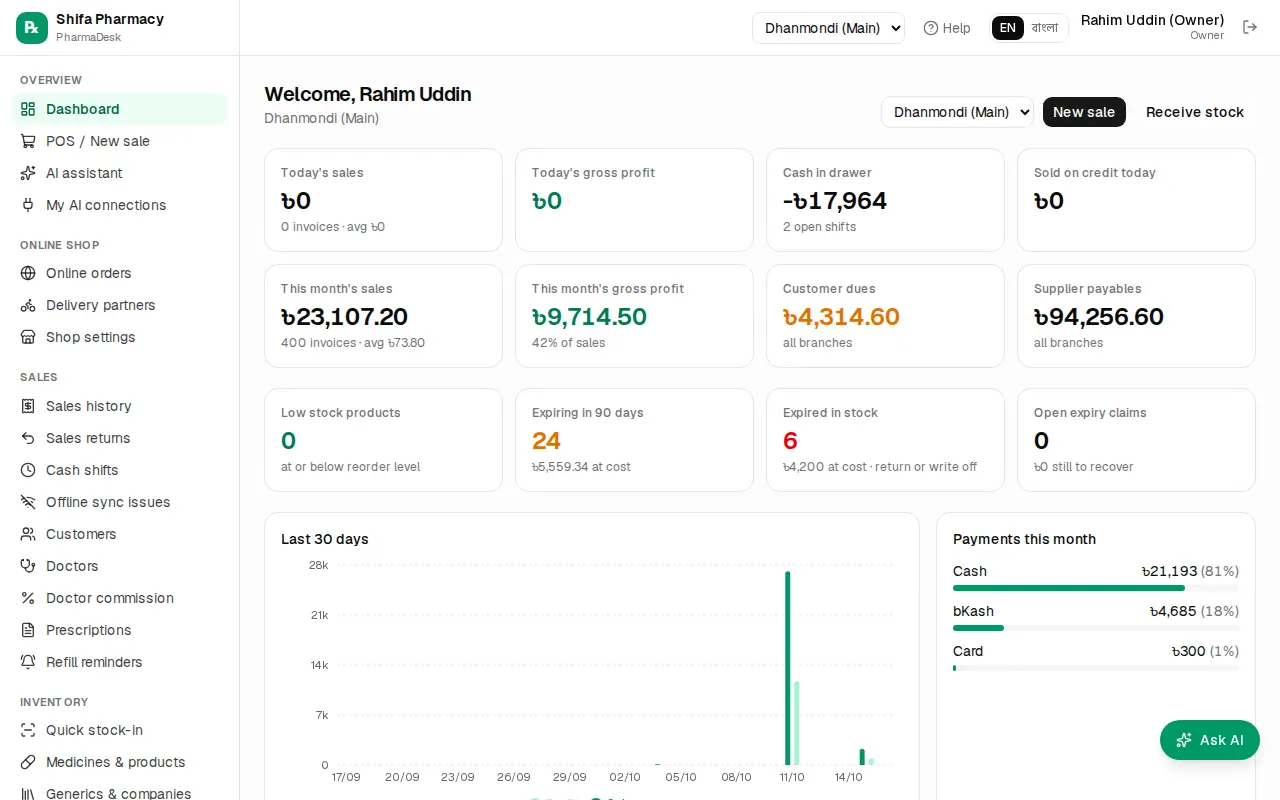
Left menu (sidebar): the pharmacy name at the top, then the menu in sections — Overview, Online shop, Sales, Inventory, Purchasing, Finance, Accounting, Reports, HR, Admin. The page you are on is highlighted in green. Menus your role is not allowed to use are not shown at all.
Simple menu (new pharmacies): a new pharmacy starts with a short menu — POS, sales, customers, medicines & stock, purchases, suppliers, dues & expenses, reports and settings. The owner switches on more modules (accounting, HR, doctor commission, online shop, …) in Admin › Modules & menu, or picks Show all menus there. A module that already has data always stays in the menu.
Get started card: the owner of a new pharmacy sees a Get started card at the top of the dashboard: profile & logo, medicines from the ready list, opening stock, staff, suppliers, first sale, receipt printer. Each step ticks itself when the data is there. Hide for now hides it; Settings › Get started guide brings it back.
Top bar (header), from right to left:
- Sign out — the door-shaped icon. Use it when you finish or leave the computer.
- Your name and role (for example "Cashier").
- EN / বাংলা — the language switch.
- The branch name, or a drop-down to pick the branch.
- Help (?) — opens the guide chapter for the page you are on.
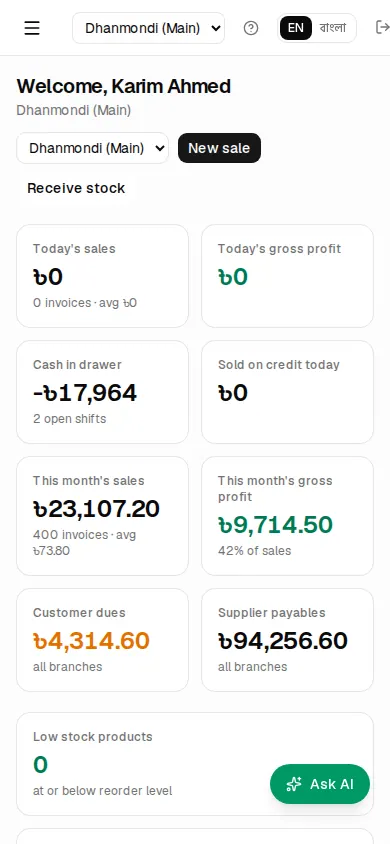
On a phone: the sidebar is hidden. Tap the three-line (☰) button at the top left to open the menu; it closes by itself when you pick a page.
Coloured banner at the top: when the free trial or subscription has 7 days or fewer left, it shows "Free trial: N days left." or "Subscription: N days left." with a Subscribe link. If your licence has expired but is in its grace days, a yellow banner appears. Details: Payments, licence & AI.
Switching language
- Find the EN / বাংলা switch in the header.
- Press বাংলা for Bangla or EN for English.
The whole app changes at once. Your choice is saved on your account. Staff who have never picked a language see the owner's Default language (Admin › Settings › Receipts). A few texts without a Bangla translation yet still show in English.
Switching branches
If the pharmacy has more than one branch, each branch has its own stock, cash drawer, sales and purchases.
- Open the branch drop-down in the header.
- Choose the branch you are working in.
The page reloads with that branch's data, and the choice is remembered next time you sign in. With only one branch you just see its name instead of a drop-down. If the owner has tied a staff member to one branch, that person only sees that branch.
Changing your password
Click the key icon at the top right (next to the sign-out icon) to open Change password. Type your current password, then the new one twice. A new password needs at least 8 characters; an owner's password also needs letters, not only digits. Changing it signs you out on your other devices; this device stays signed in.
Temporary passwords. When the owner adds a staff member or sets a new password for someone, or when JonakiSoft sets up your pharmacy, that password is temporary: after signing in with it you see Set your own password and can't open anything else until you choose your own.
If you forgot your password, see I forgot my password. Staff can also ask the owner, who opens Admin › Users & roles and presses the key icon next to their name. Details: Owner setup.
Which menus each role sees
Every user has one role. The menu follows the role:
| Role | Sees |
|---|---|
| Owner | Everything, including all Admin settings |
| Manager | Sales, Inventory, Purchasing, Finance, Accounting, Reports, HR, Online orders; in Admin only Import data and Audit log |
| Pharmacist | Dashboard, POS, Sales (not commission), Customers, Doctors, Prescriptions, Medicines & products, Stock, Expiry, Reorder |
| Cashier | Dashboard (own sales today), POS, Sales history, Returns, Cash shifts, Customers, Prescriptions, Medicines & products |
| Store keeper | Dashboard, all of Inventory (stock-in, adjustments, transfers, stock count) and all of Purchasing |
| Accountant | Dashboard, Sales history, Doctor commission, stock views, Purchasing, Finance, Accounting, Reports |
The AI assistant is available to owners, managers, pharmacists, store keepers and accountants (not cashiers). My AI connections only appears when your plan includes the AI connector. Modules that are not in your plan (for example HR) are hidden from the menu.
Opening a page your role can't use shows a "No access" page. If you need it, ask the owner; they can change your role.
The Help button
Stuck on a page? Press Help (?) in the header. It opens the guide chapter written for that page — on the POS, for example, the Daily sales chapter. For problems see Troubleshooting, and for unfamiliar words the Glossary.
Practising on the demo
You can practise on a demo before touching real data. Opening the /demo page on the PharmaDesk website builds a sample pharmacy just for you, with medicines, stock and a month of sales, and signs you in automatically. Nothing in it is real, and it is deleted after 24 hours.
- In the yellow banner at the top, use the View as drop-down to switch between Owner, Manager, Cashier and the other roles and see what each one sees.
- When the demo ends, press Start a new demo, or Start your own free trial to open your own pharmacy.
- On a public demo server, the sign-in page also lists the staff of the sample pharmacy "Shifa Pharmacy" with a one-click button each:
01700000001(Owner) to01700000006(Accountant), password123456. These work on the demo only.
Common mistakes
- Working in the wrong branch. Check the branch in the header before a sale or stock-in.
- Leaving the computer without signing out. On a shared counter someone else could sell under your name.
- Sharing one account between staff. Give everyone their own login so the audit log shows who did what.
- Guessing a forgotten password again and again. Ten wrong tries lock you out for 15 minutes; ask the owner for a new password instead.